> ## Documentation Index
> Fetch the complete documentation index at: https://docs.neuroscale.ai/llms.txt
> Use this file to discover all available pages before exploring further.
# Job Requisitions
> Create and manage job requisitions
Jobs are the core unit of work inside a [project](/core/projects). Each job represents a position you are hiring for and contains its own pipeline of candidates, outreach sequences, Arbitrator sessions, and sourcing agents. Jobs live inside the currently active project and inherit that project's permissions.
Depending on your plan, you can have a limited number of **active jobs** at a time (up to 5 on Growth, up to 10 on Business, unlimited on Enterprise). See [Credit usage](/credit-usage) for a full plan comparison.
## Job Requisitions page
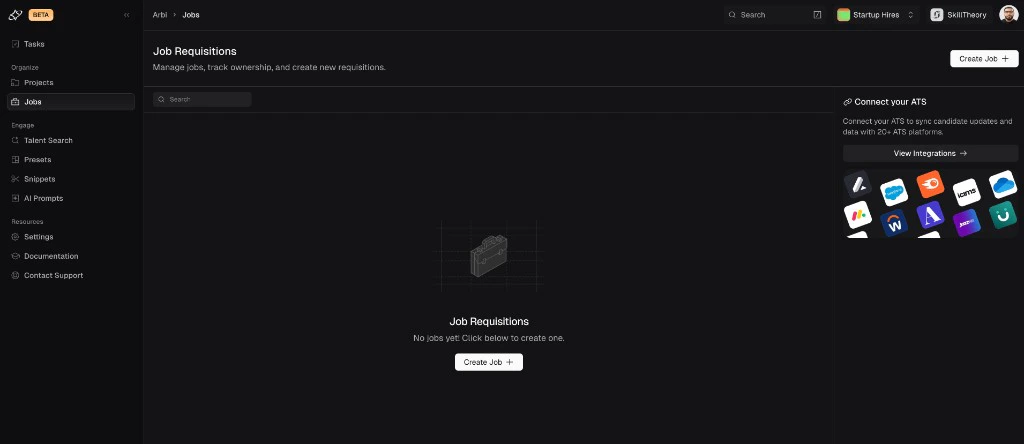
Navigate to **Jobs** in the sidebar to see all job requisitions in your active project. If you have no jobs yet, you will see an empty state prompting you to create one. You can also connect your ATS from this page to sync jobs and candidates automatically. See [ATS integrations](/integrations/ats-integrations) for more.
 ## Creating a job
Click **Create Job** to open the Job Setup wizard. The wizard walks you through four steps: Job Details, Stage Setup, Profile Import, and Complete.
### Step 1: Job Details
Fill in the basic information for your position:
* **Job Title** - the title for this role (e.g. "Founding Software Engineer - Typescript").
* **Job Manager** - the person in Arbi responsible for sourcing and outreach on this position. Select from members of your organization.
* **Job Description** - a rich text description of the role. The editor supports bold, italic, underline, lists, links, and tables.
## Creating a job
Click **Create Job** to open the Job Setup wizard. The wizard walks you through four steps: Job Details, Stage Setup, Profile Import, and Complete.
### Step 1: Job Details
Fill in the basic information for your position:
* **Job Title** - the title for this role (e.g. "Founding Software Engineer - Typescript").
* **Job Manager** - the person in Arbi responsible for sourcing and outreach on this position. Select from members of your organization.
* **Job Description** - a rich text description of the role. The editor supports bold, italic, underline, lists, links, and tables.
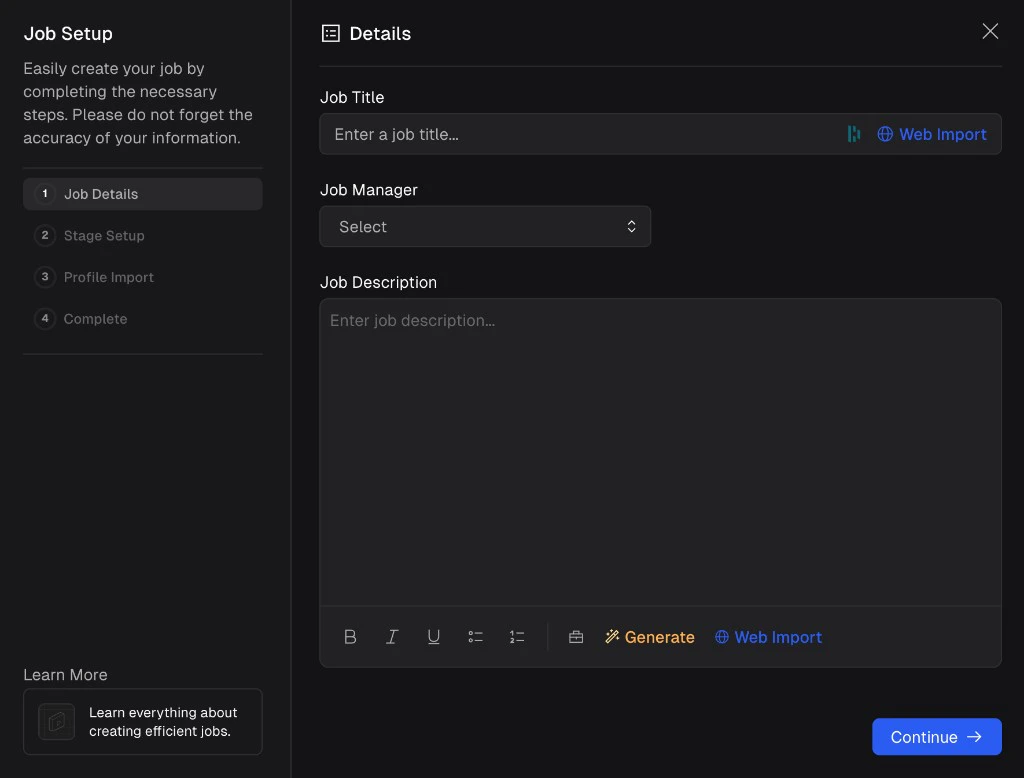 There are several ways to populate your job description:
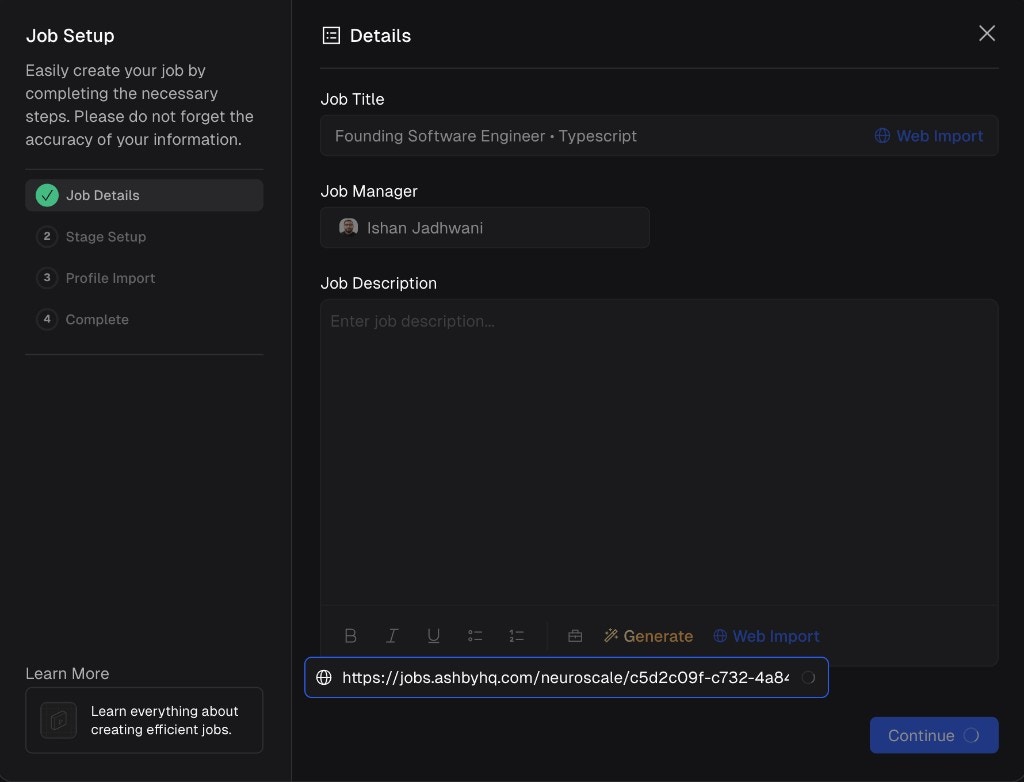
* **Web Import** - paste any publicly available job board URL into the field at the bottom and click **Web Import**. Arbi will pull in the job title and description automatically.
* **Generate** - click **Generate** at the bottom of the description editor to have Arbi write a job description based on plain-language requirements you provide.
* **Copy from another job** - click the suitcase icon at the bottom of the editor to copy a description from an existing job in your account.
* **Manual entry** - type or paste your description directly into the editor.
There are several ways to populate your job description:
* **Web Import** - paste any publicly available job board URL into the field at the bottom and click **Web Import**. Arbi will pull in the job title and description automatically.
* **Generate** - click **Generate** at the bottom of the description editor to have Arbi write a job description based on plain-language requirements you provide.
* **Copy from another job** - click the suitcase icon at the bottom of the editor to copy a description from an existing job in your account.
* **Manual entry** - type or paste your description directly into the editor.
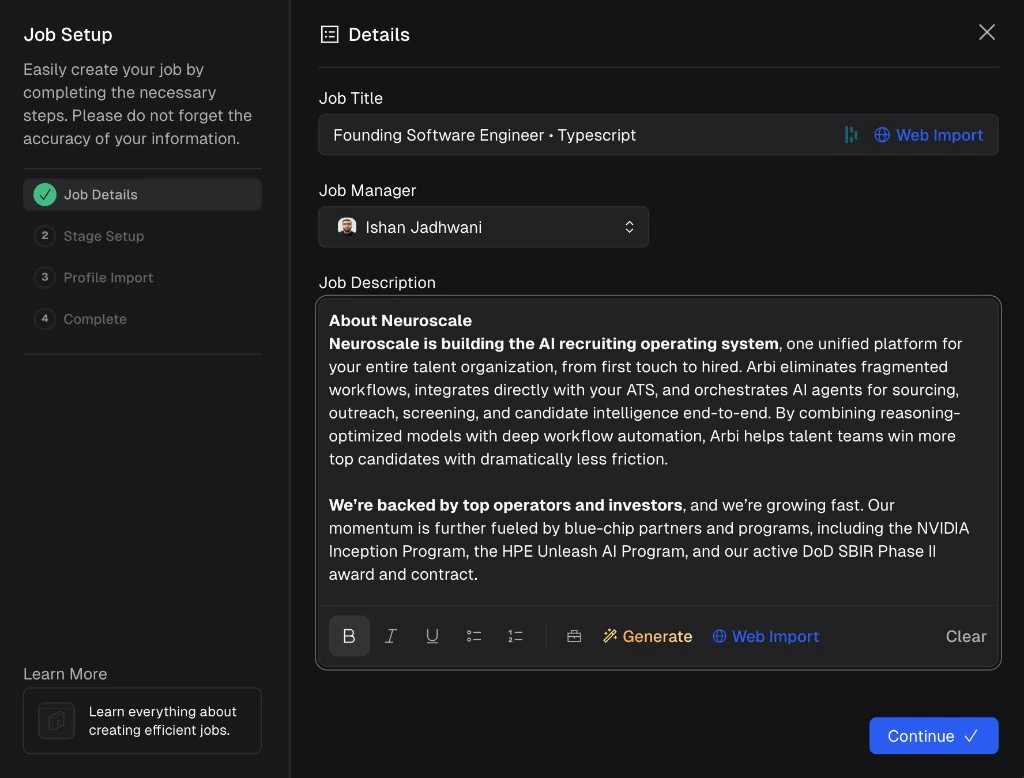 Click **Continue** to proceed to Stage Setup.
### Step 2: Stage Setup
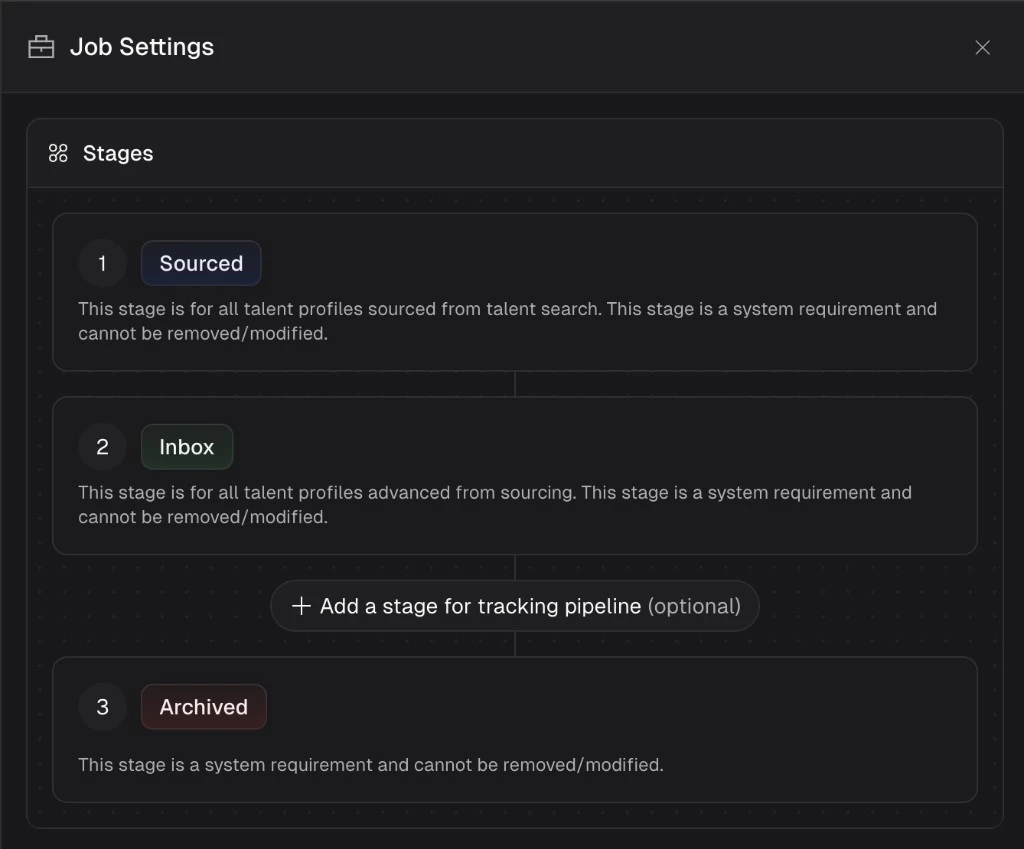
Stages define the pipeline that candidates move through within your job. By default, Arbi creates three stages:
1. **Sourced** - all talent profiles sourced from [Talent Search](/sourcing/talent-search) land here. This stage is a system requirement and cannot be removed or modified.
2. **Inbox** - candidates that are advanced from Sourced (e.g. they replied as interested to outreach or are moving forward). This stage is required for non-ATS jobs and cannot be removed.
3. **Archived** - candidates that have been archived. You can restore them at any time. This stage is a system requirement and cannot be removed.
Click **Continue** to proceed to Stage Setup.
### Step 2: Stage Setup
Stages define the pipeline that candidates move through within your job. By default, Arbi creates three stages:
1. **Sourced** - all talent profiles sourced from [Talent Search](/sourcing/talent-search) land here. This stage is a system requirement and cannot be removed or modified.
2. **Inbox** - candidates that are advanced from Sourced (e.g. they replied as interested to outreach or are moving forward). This stage is required for non-ATS jobs and cannot be removed.
3. **Archived** - candidates that have been archived. You can restore them at any time. This stage is a system requirement and cannot be removed.
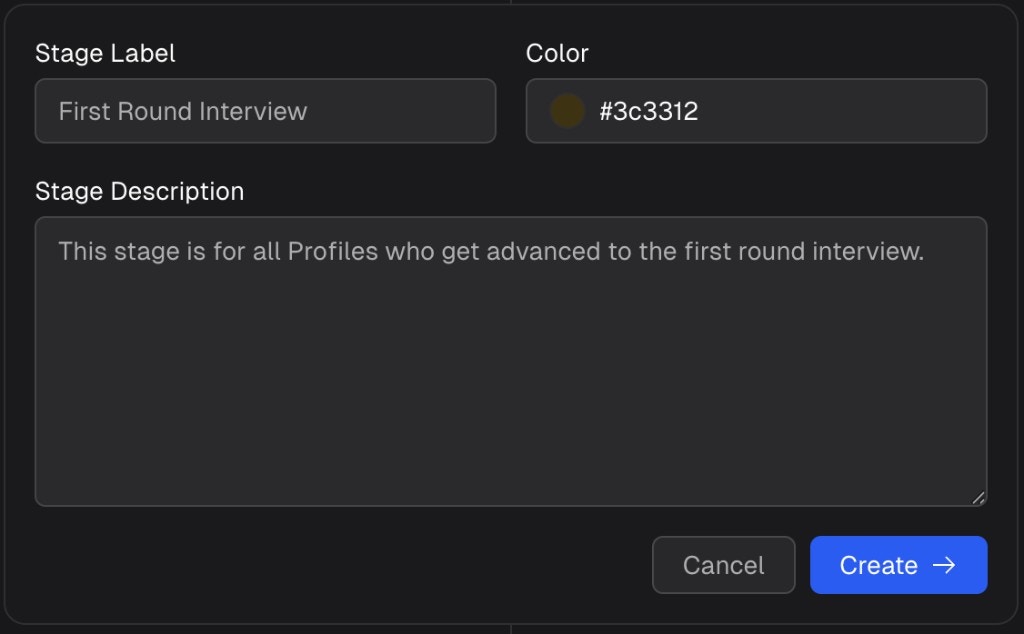
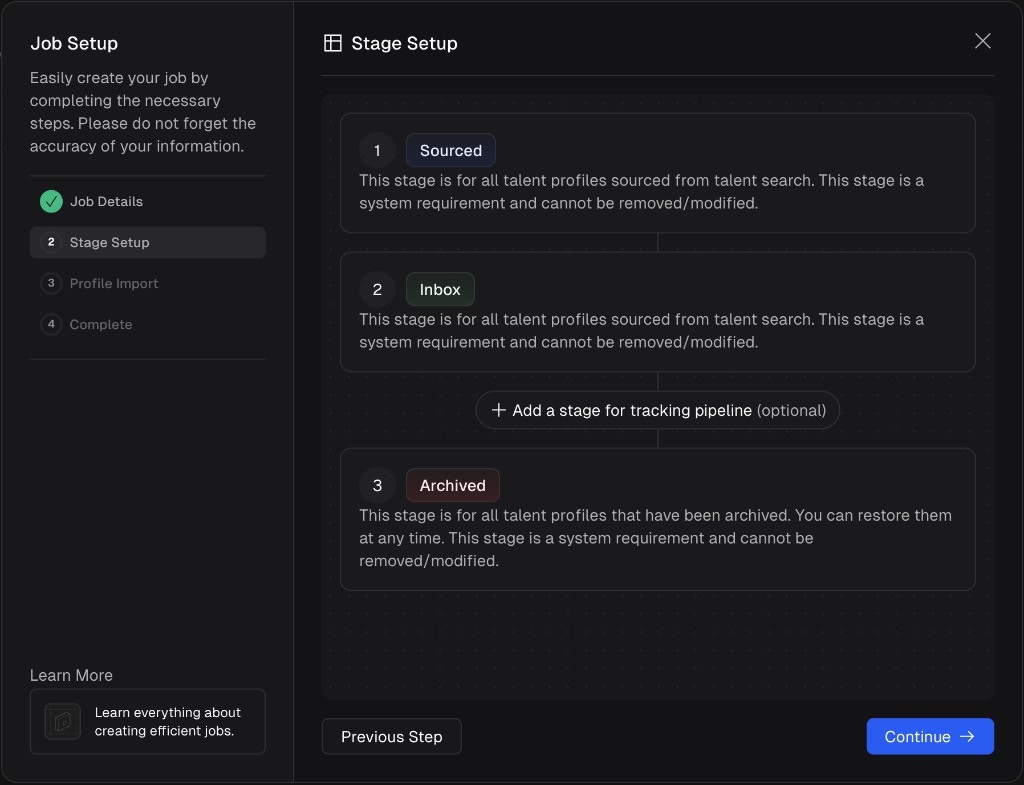 You can add custom stages between Inbox and Archived to build a tracking pipeline that matches your hiring process. Click **+ Add a stage for tracking pipeline** and fill in:
* **Stage Label** - a name for the stage (e.g. "First Round Interview", "Technical Screen", "Offer").
* **Color** - pick a color or use the default.
* **Stage Description** - describe what this stage represents.
You can add custom stages between Inbox and Archived to build a tracking pipeline that matches your hiring process. Click **+ Add a stage for tracking pipeline** and fill in:
* **Stage Label** - a name for the stage (e.g. "First Round Interview", "Technical Screen", "Offer").
* **Color** - pick a color or use the default.
* **Stage Description** - describe what this stage represents.
 If you have an ATS integration connected, your ATS stages are automatically imported and mapped into Arbi. The two mandatory stages for ATS-connected jobs are **Sourced** and **Archived**. You can also configure whether profiles are automatically exported to your ATS when they land in specific stages.
Click **Continue** to proceed to Profile Import.
### Step 3: Profile Import
This step lets you optionally import existing candidates into the job before it is created. If you have an ATS connected and this job is linked to a position in your ATS, you will see a preview of all candidates that will be automatically imported and which stages they will land in.
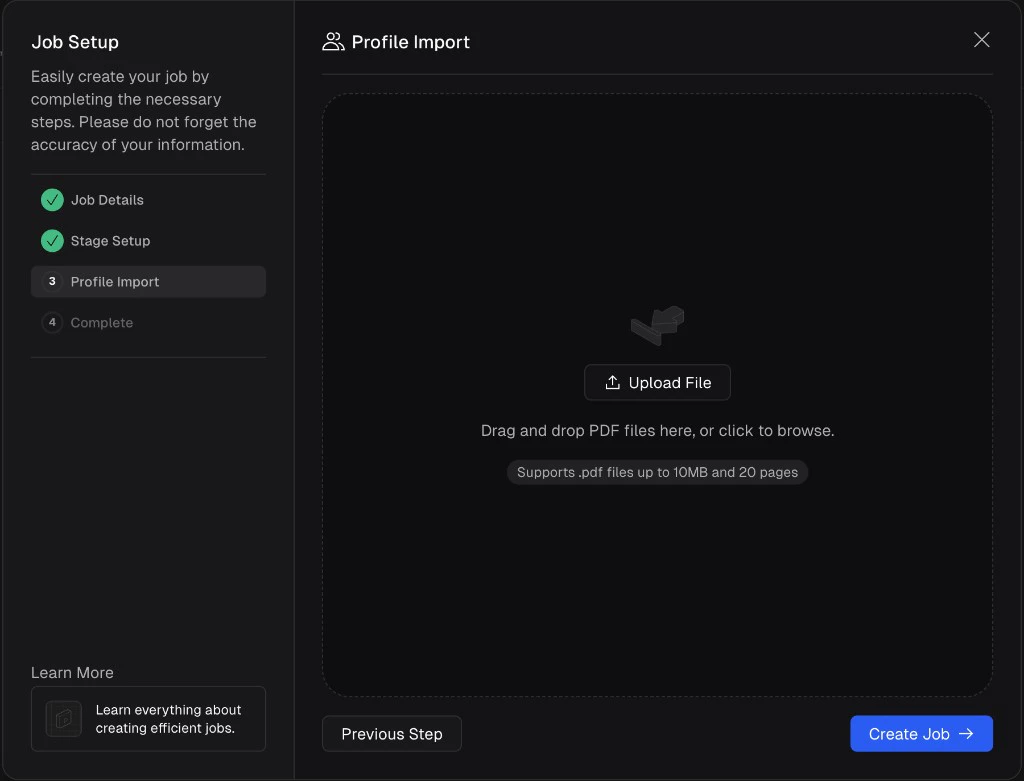
If you are creating a job without an ATS, you can upload resumes to bring in existing candidates. Click **Upload File** to drag and drop or browse for PDF files (up to 10MB and 20 pages per file). Arbi will process each resume in the background, extracting experience, education, skills, and other fields to create a structured candidate profile.
If you have an ATS integration connected, your ATS stages are automatically imported and mapped into Arbi. The two mandatory stages for ATS-connected jobs are **Sourced** and **Archived**. You can also configure whether profiles are automatically exported to your ATS when they land in specific stages.
Click **Continue** to proceed to Profile Import.
### Step 3: Profile Import
This step lets you optionally import existing candidates into the job before it is created. If you have an ATS connected and this job is linked to a position in your ATS, you will see a preview of all candidates that will be automatically imported and which stages they will land in.
If you are creating a job without an ATS, you can upload resumes to bring in existing candidates. Click **Upload File** to drag and drop or browse for PDF files (up to 10MB and 20 pages per file). Arbi will process each resume in the background, extracting experience, education, skills, and other fields to create a structured candidate profile.
 Imported profiles are stored exclusively within your organization and are not shared with any other Arbi accounts or talent pools. They will only appear in the job they were imported to and will not show up in Talent Search.
You can skip this step if you do not have any existing candidates to import. Click **Create Job** to finish.
### Step 4: Complete
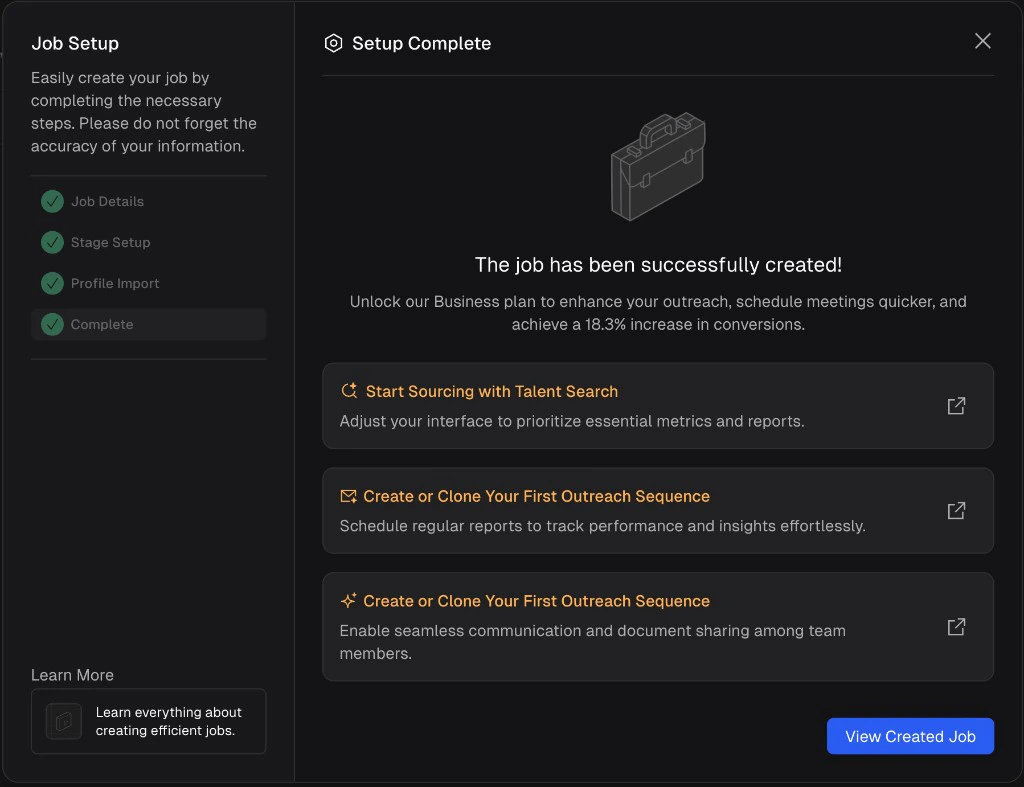
Once the job is created, you will see a confirmation screen with quick actions to get started:
* **Start Sourcing with Talent Search** - go directly to [Talent Search](/sourcing/talent-search) to find candidates for this role.
* **Create or Clone Your First Outreach Sequence** - set up a [Sequence](/outreach/sequences) for this job.
Click **View Created Job** to open the job pipeline.
Imported profiles are stored exclusively within your organization and are not shared with any other Arbi accounts or talent pools. They will only appear in the job they were imported to and will not show up in Talent Search.
You can skip this step if you do not have any existing candidates to import. Click **Create Job** to finish.
### Step 4: Complete
Once the job is created, you will see a confirmation screen with quick actions to get started:
* **Start Sourcing with Talent Search** - go directly to [Talent Search](/sourcing/talent-search) to find candidates for this role.
* **Create or Clone Your First Outreach Sequence** - set up a [Sequence](/outreach/sequences) for this job.
Click **View Created Job** to open the job pipeline.
 ## Working inside a job
Once you open a job, you will see the pipeline view with your stages displayed as tabs across the top (left to right: Sourced, Inbox, any custom stages, and Archived on the far right). Click **All** to see every profile in the job regardless of stage.
## Working inside a job
Once you open a job, you will see the pipeline view with your stages displayed as tabs across the top (left to right: Sourced, Inbox, any custom stages, and Archived on the far right). Click **All** to see every profile in the job regardless of stage.
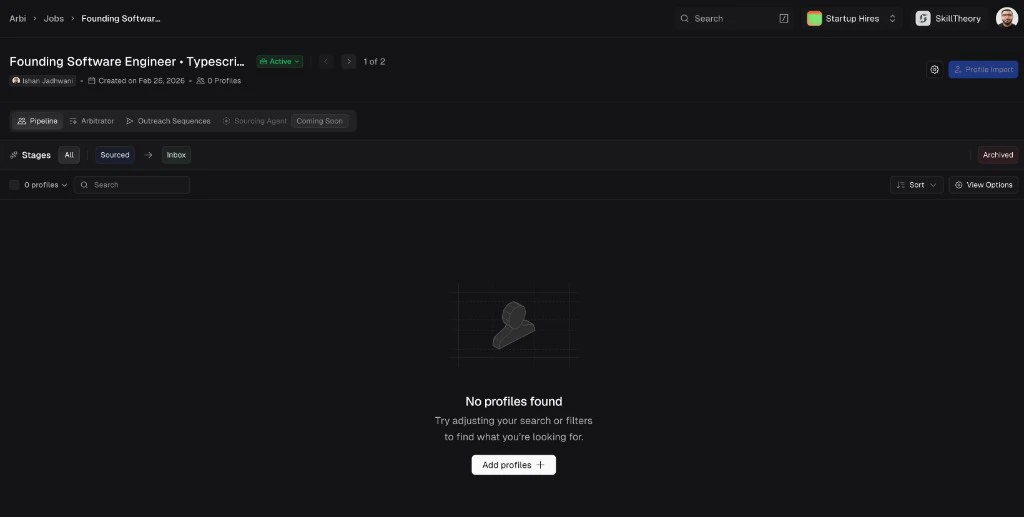 From the job view, you can:
* **Add profiles** - click **Profile Import** in the top right or **Add profiles** in the empty state to import candidates (see importing profiles below).
* **Run Arbitrator** - use the [Arbitrator](/sourcing/arbitrator) tab to score and rank candidates.
* **Create outreach sequences** - use the Outreach Sequences tab to set up [Sequences](/outreach/sequences) for this job.
* **Configure sourcing agents** - set up automated [Sourcing agents](/agents/sourcing-agent) for this job.
* **Manage job settings** - click the gear icon to modify stages, job details, and other settings.
### Job settings
Click the gear icon at the top right of the job view to open **Job Settings**. From here you can modify your pipeline stages at any time, including adding new custom stages, reordering them, or editing their labels and descriptions.
From the job view, you can:
* **Add profiles** - click **Profile Import** in the top right or **Add profiles** in the empty state to import candidates (see importing profiles below).
* **Run Arbitrator** - use the [Arbitrator](/sourcing/arbitrator) tab to score and rank candidates.
* **Create outreach sequences** - use the Outreach Sequences tab to set up [Sequences](/outreach/sequences) for this job.
* **Configure sourcing agents** - set up automated [Sourcing agents](/agents/sourcing-agent) for this job.
* **Manage job settings** - click the gear icon to modify stages, job details, and other settings.
### Job settings
Click the gear icon at the top right of the job view to open **Job Settings**. From here you can modify your pipeline stages at any time, including adding new custom stages, reordering them, or editing their labels and descriptions.
 ## Importing profiles
You can import candidates into a job at any time, not just during initial setup. Click the **Profile Import** button in the top right of the job view. Arbi supports three import methods:
## Importing profiles
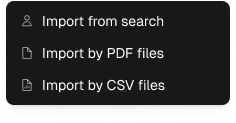
You can import candidates into a job at any time, not just during initial setup. Click the **Profile Import** button in the top right of the job view. Arbi supports three import methods:
 ### Import from search
Search for candidates by name, company, location, or paste a LinkedIn or GitHub profile URL. Select the stage you want imported profiles to land in and click **Import**.
### Import from search
Search for candidates by name, company, location, or paste a LinkedIn or GitHub profile URL. Select the stage you want imported profiles to land in and click **Import**.
 ### Import by CSV
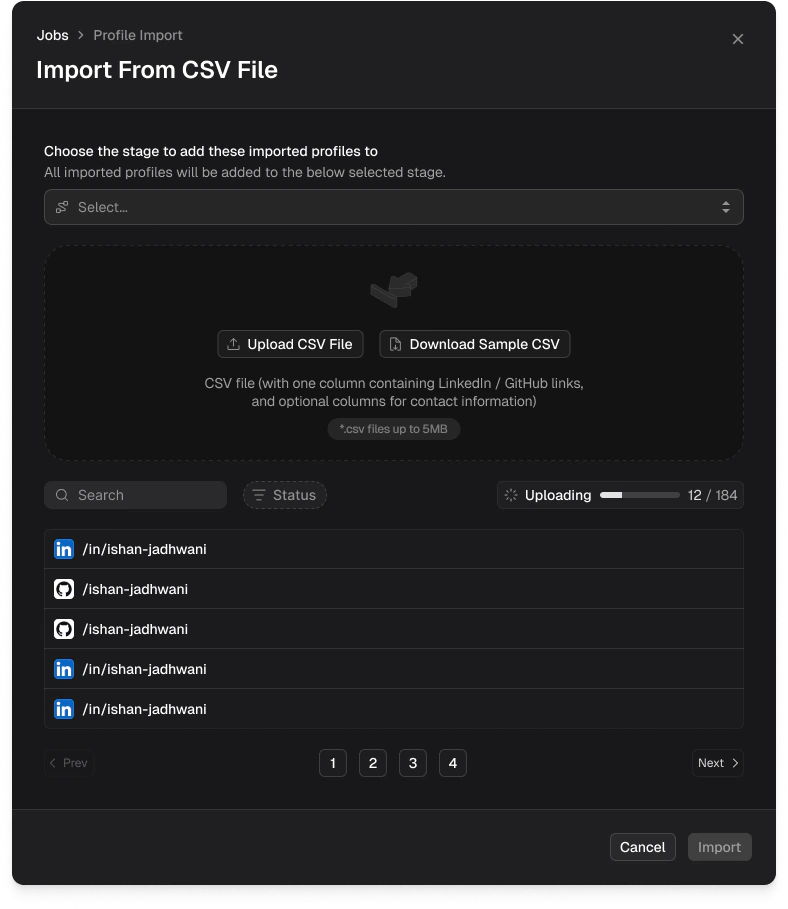
Upload a CSV file containing LinkedIn or GitHub profile links. The CSV should have one column with profile URLs and optional columns for contact information. Files up to 5MB are supported. You can download a sample CSV for reference. Select a target stage and click **Import**.
### Import by CSV
Upload a CSV file containing LinkedIn or GitHub profile links. The CSV should have one column with profile URLs and optional columns for contact information. Files up to 5MB are supported. You can download a sample CSV for reference. Select a target stage and click **Import**.
 ### Import by PDF
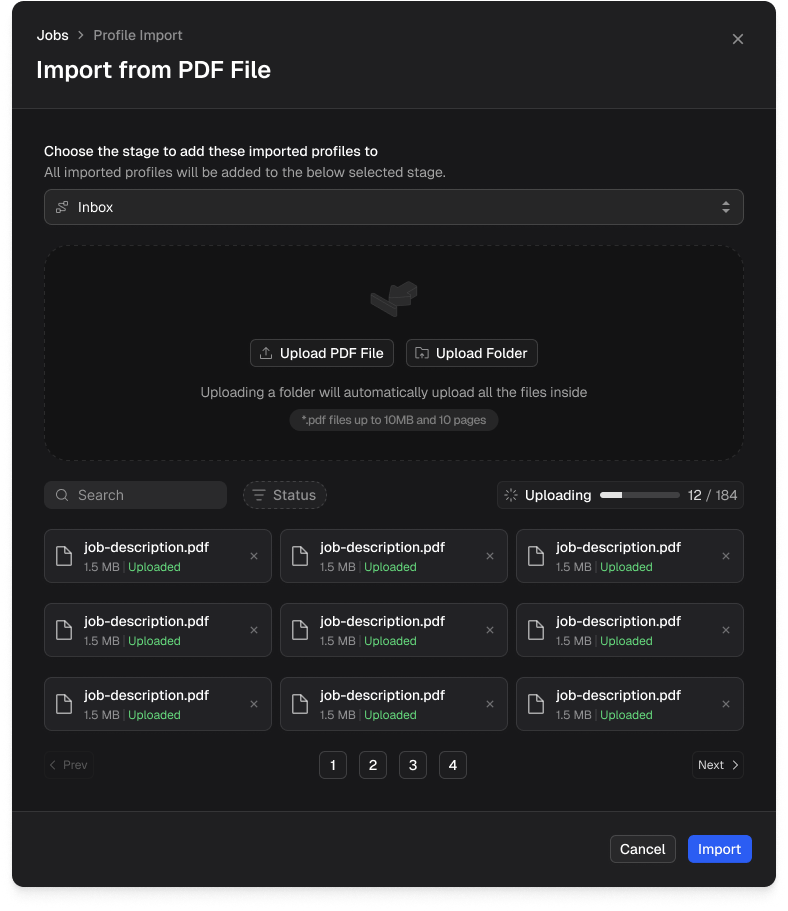
Upload individual resume PDFs or an entire folder. Arbi extracts experience, education, skills, and other fields from each resume to build structured candidate profiles. PDF files up to 10MB and 10 pages are supported. Select a target stage and click **Import**.
### Import by PDF
Upload individual resume PDFs or an entire folder. Arbi extracts experience, education, skills, and other fields from each resume to build structured candidate profiles. PDF files up to 10MB and 10 pages are supported. Select a target stage and click **Import**.
 ### Monitoring imports
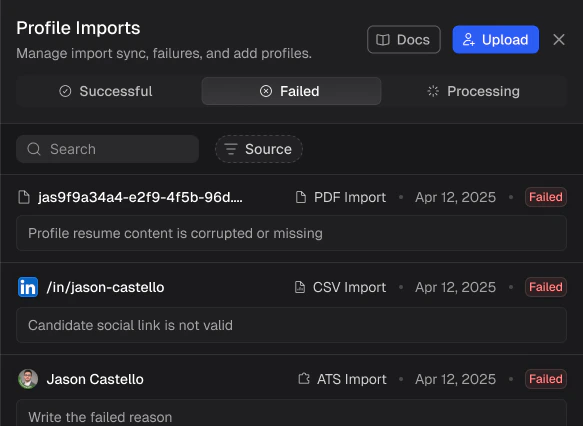
After importing, you can track the status of each profile in the **Profile Imports** panel. Click the **Profile Import** button to open it. Imports are categorized into three tabs:
* **Successful** - profiles that were processed and added to your job.
* **Failed** - profiles that could not be imported. Each entry shows the reason for failure (e.g. "Profile resume content is corrupted or missing", "Candidate social link is not valid").
* **Processing** - profiles that are still being enriched.
### Monitoring imports
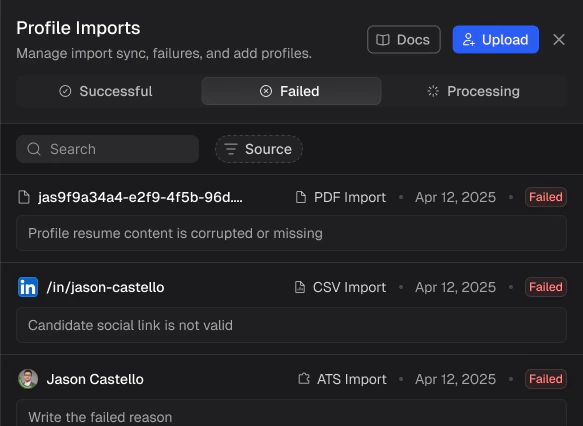
After importing, you can track the status of each profile in the **Profile Imports** panel. Click the **Profile Import** button to open it. Imports are categorized into three tabs:
* **Successful** - profiles that were processed and added to your job.
* **Failed** - profiles that could not be imported. Each entry shows the reason for failure (e.g. "Profile resume content is corrupted or missing", "Candidate social link is not valid").
* **Processing** - profiles that are still being enriched.
 ## Job status
Every job has a status that controls whether it is actively running. Click the status badge next to the job title to change it:
* **Active** - the job is live. Sequences are running, ATS syncing is active, and the job counts toward your active job quota.
* **Paused** - all sequences and ATS syncing are paused. The job does not count toward your active quota. Use this when you are temporarily not hiring for this role but may resume later.
* **Closed** - the job is permanently closed. All activity stops. The job does not count toward your active quota. Use this when the position has been filled or is no longer needed.
Pausing or closing a job will automatically stop all running sequences and ATS syncing for that position. Make sure you are ready to halt all outreach before changing the status.
### Closing a job
When you close a job, Arbi will ask you to provide a reason and optionally select the profiles that you hired. This helps Arbi carry out related cleanup tasks.
## Job status
Every job has a status that controls whether it is actively running. Click the status badge next to the job title to change it:
* **Active** - the job is live. Sequences are running, ATS syncing is active, and the job counts toward your active job quota.
* **Paused** - all sequences and ATS syncing are paused. The job does not count toward your active quota. Use this when you are temporarily not hiring for this role but may resume later.
* **Closed** - the job is permanently closed. All activity stops. The job does not count toward your active quota. Use this when the position has been filled or is no longer needed.
Pausing or closing a job will automatically stop all running sequences and ATS syncing for that position. Make sure you are ready to halt all outreach before changing the status.
### Closing a job
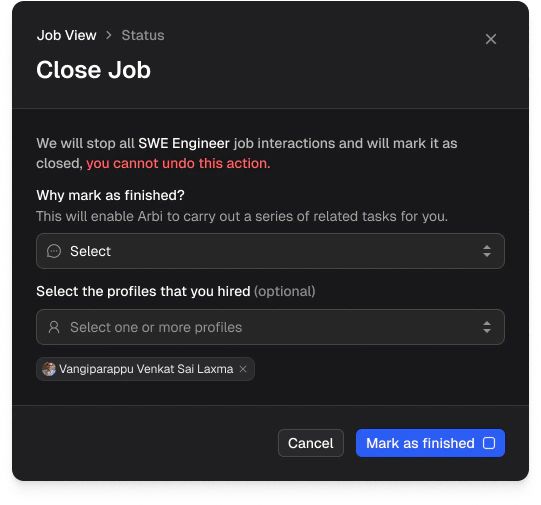
When you close a job, Arbi will ask you to provide a reason and optionally select the profiles that you hired. This helps Arbi carry out related cleanup tasks.
 ## Frequently asked questions
This depends on your plan: up to 5 on Growth, up to 10 on Business, and unlimited on Enterprise. Paused and closed jobs do not count toward your active quota. See [Credit usage](/credit-usage) for details.
No. Profiles imported via PDF, CSV, or manual search are stored only within the job they were imported to. They are private to your organization and do not appear in the global Talent Search dataset.
Yes. From the pipeline view, you can drag candidates between stages or use the candidate profile actions to advance or archive them.
If you have an ATS integration connected, your ATS stages are automatically imported and mapped. Candidates can be configured to sync bidirectionally between Arbi and your ATS based on stage mapping.
Yes. You can import profiles at any time using the Profile Import button in the top right of the job view. All three import methods (search, CSV, PDF) are always available.
## Frequently asked questions
This depends on your plan: up to 5 on Growth, up to 10 on Business, and unlimited on Enterprise. Paused and closed jobs do not count toward your active quota. See [Credit usage](/credit-usage) for details.
No. Profiles imported via PDF, CSV, or manual search are stored only within the job they were imported to. They are private to your organization and do not appear in the global Talent Search dataset.
Yes. From the pipeline view, you can drag candidates between stages or use the candidate profile actions to advance or archive them.
If you have an ATS integration connected, your ATS stages are automatically imported and mapped. Candidates can be configured to sync bidirectionally between Arbi and your ATS based on stage mapping.
Yes. You can import profiles at any time using the Profile Import button in the top right of the job view. All three import methods (search, CSV, PDF) are always available.