> ## Documentation Index
> Fetch the complete documentation index at: https://docs.neuroscale.ai/llms.txt
> Use this file to discover all available pages before exploring further.
# Talent Search
> Learn how to use Arbi to search effectively and find the right talent
Find your perfect profile with Arbi, in seconds. Talent Search is where you start: run natural-language or filter-based queries, use AI-suggested smart searches, and refine results until you have a shortlist that matches your role and criteria.
This guide covers how to **search** (three ways) and how to **review and act on results**.
## How to search
### Method 1: Arbi agent (smart searches)
The fastest way to start a search is to let the Arbi agent do it for you. From the Talent Search home screen, pick a **Smart Search** card or type a natural-language prompt into the search bar. For example, try "Find me software engineers skilled in Typescript & Node.js working at a Series A company." Arbi parses your request, applies the right filters automatically, and returns a ranked result set.
The agent also understands recruiter shorthand. Say "DMV area" and it knows you mean D.C., Maryland, and Virginia. Say "NorCal" and it scopes to Northern California. No need to map those yourself.
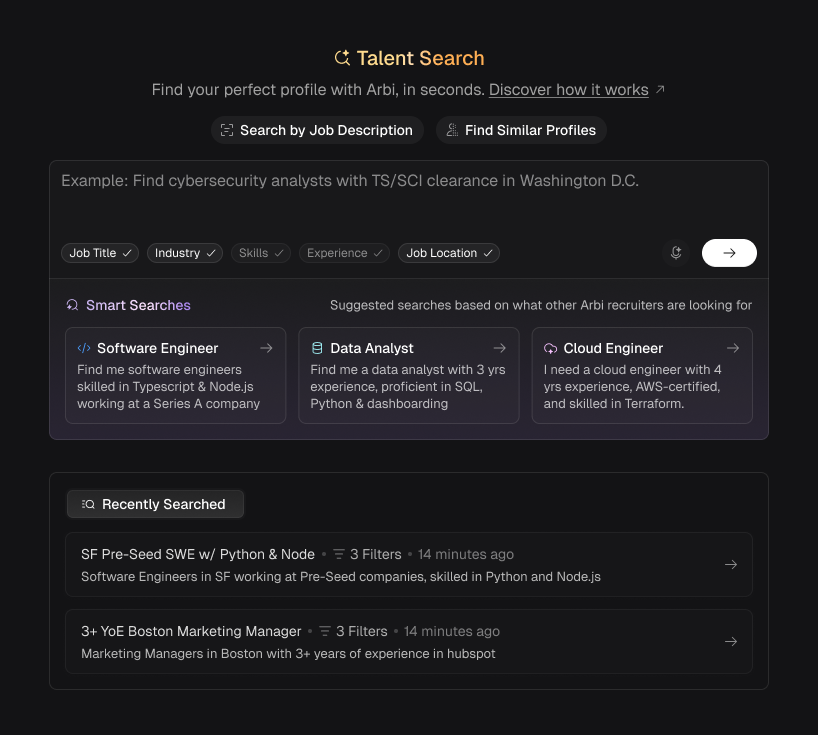 Best when you want to start from a role or a rough brief and have Arbi handle the details.
### Method 2: Manual filters
Open the **Filters** panel on the left side of the search results view to build a search entirely by hand. Filters are grouped into categories: **General** (experience range, contact info, exclusions), **Skills or Keywords**, **Locations** (current and past), **Job** (titles, roles, tenure), **Company** (funding stage, revenue, investors), **Education** (university, graduation date, majors), **LinkedIn** (connection scope), **Languages**, and more.
Each filter supports search-as-you-type, presets you can save and reuse, and toggles like Current + Past for location or job history. For a full breakdown of every filter and what it does, see [Talent filters](/sourcing/talent-filters).
Best when you want to start from a role or a rough brief and have Arbi handle the details.
### Method 2: Manual filters
Open the **Filters** panel on the left side of the search results view to build a search entirely by hand. Filters are grouped into categories: **General** (experience range, contact info, exclusions), **Skills or Keywords**, **Locations** (current and past), **Job** (titles, roles, tenure), **Company** (funding stage, revenue, investors), **Education** (university, graduation date, majors), **LinkedIn** (connection scope), **Languages**, and more.
Each filter supports search-as-you-type, presets you can save and reuse, and toggles like Current + Past for location or job history. For a full breakdown of every filter and what it does, see [Talent filters](/sourcing/talent-filters).
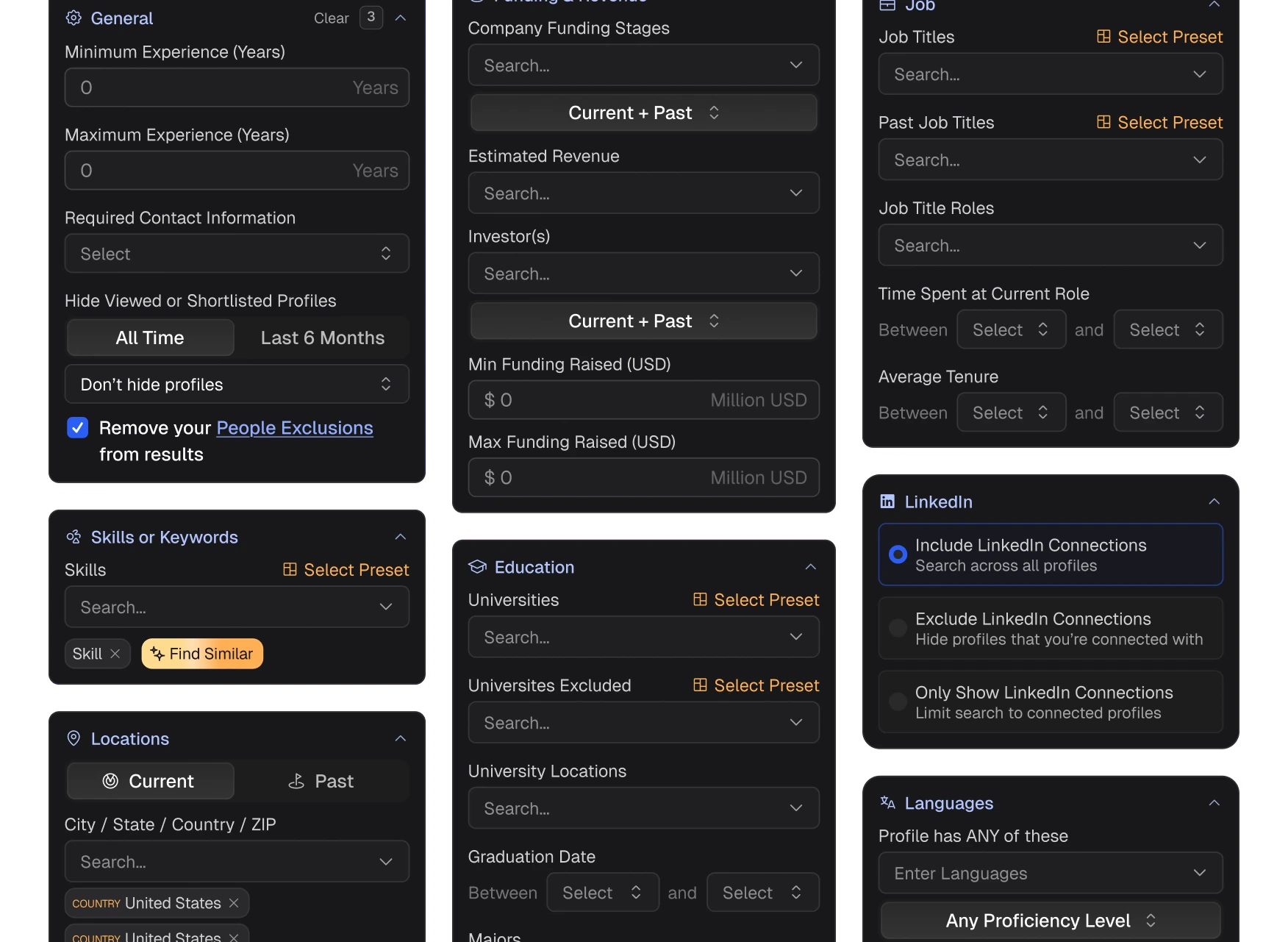 Best when you know exactly which criteria matter and want full control over every parameter.
### Method 3: Hybrid (agent + filters)
The most powerful approach combines both. Start with a natural-language prompt or Smart Search and let the Arbi agent build your initial search, then open the **Filters** panel to fine-tune.
The **Arbi Assistant** (right-side panel) stays active while you work. Use it to:
* **Add recommended titles** - ask "What other titles should I include?" and the agent suggests related roles you might be missing.
* **Expand search scope** - tell it to widen geography, loosen experience ranges, or include adjacent industries.
* **Get skill suggestions** - say "What skills are similar to Terraform?" and it recommends related technologies.
* **Translate recruiter slang** - type "candidates from the DMV area" or "NorCal startups" and the agent resolves those to the right locations and company filters.
* **Refine iteratively** - review the result count, tell the agent what to change ("too many results, add Python as a required skill"), and watch the filters update live.
Best when you know exactly which criteria matter and want full control over every parameter.
### Method 3: Hybrid (agent + filters)
The most powerful approach combines both. Start with a natural-language prompt or Smart Search and let the Arbi agent build your initial search, then open the **Filters** panel to fine-tune.
The **Arbi Assistant** (right-side panel) stays active while you work. Use it to:
* **Add recommended titles** - ask "What other titles should I include?" and the agent suggests related roles you might be missing.
* **Expand search scope** - tell it to widen geography, loosen experience ranges, or include adjacent industries.
* **Get skill suggestions** - say "What skills are similar to Terraform?" and it recommends related technologies.
* **Translate recruiter slang** - type "candidates from the DMV area" or "NorCal startups" and the agent resolves those to the right locations and company filters.
* **Refine iteratively** - review the result count, tell the agent what to change ("too many results, add Python as a required skill"), and watch the filters update live.
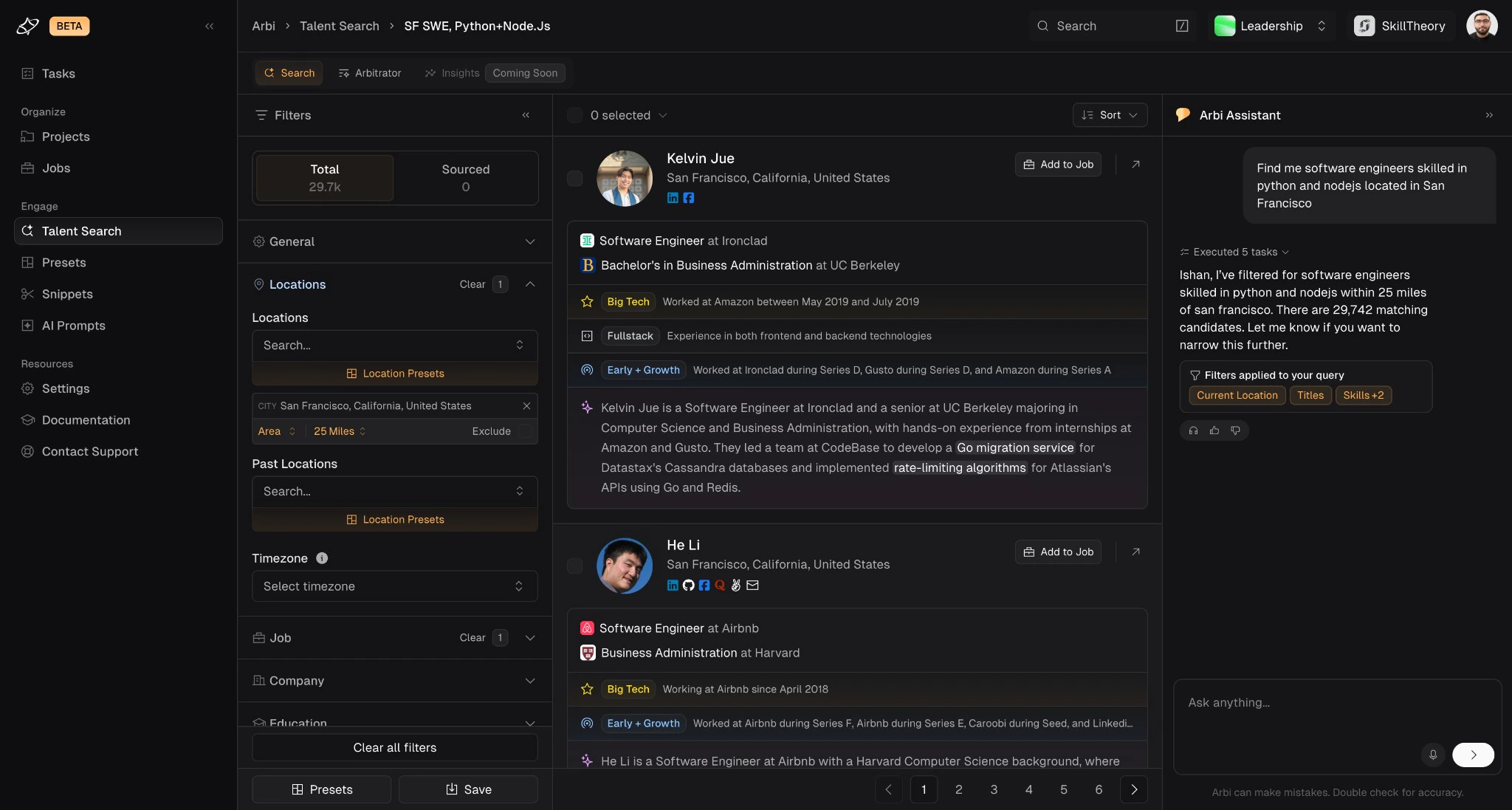 Best when you want the speed of the agent to get started and the precision of manual filters to dial in the perfect shortlist.
## How to review profiles
Once your search returns results, each candidate in the list shows a summary card with their name, location, current role, education, and key tags like **Big Tech**, **Early + Growth**, or **Fullstack**. You will also see an **AI-Powered Spotlight**, a short AI-generated summary of the candidate's background and standout experience, along with **Highlights** that call out signals like long tenure, notable employers, or technical depth.
Click the arrow on any candidate card to open their full profile.
Best when you want the speed of the agent to get started and the precision of manual filters to dial in the perfect shortlist.
## How to review profiles
Once your search returns results, each candidate in the list shows a summary card with their name, location, current role, education, and key tags like **Big Tech**, **Early + Growth**, or **Fullstack**. You will also see an **AI-Powered Spotlight**, a short AI-generated summary of the candidate's background and standout experience, along with **Highlights** that call out signals like long tenure, notable employers, or technical depth.
Click the arrow on any candidate card to open their full profile.
 ### What you will find in a profile
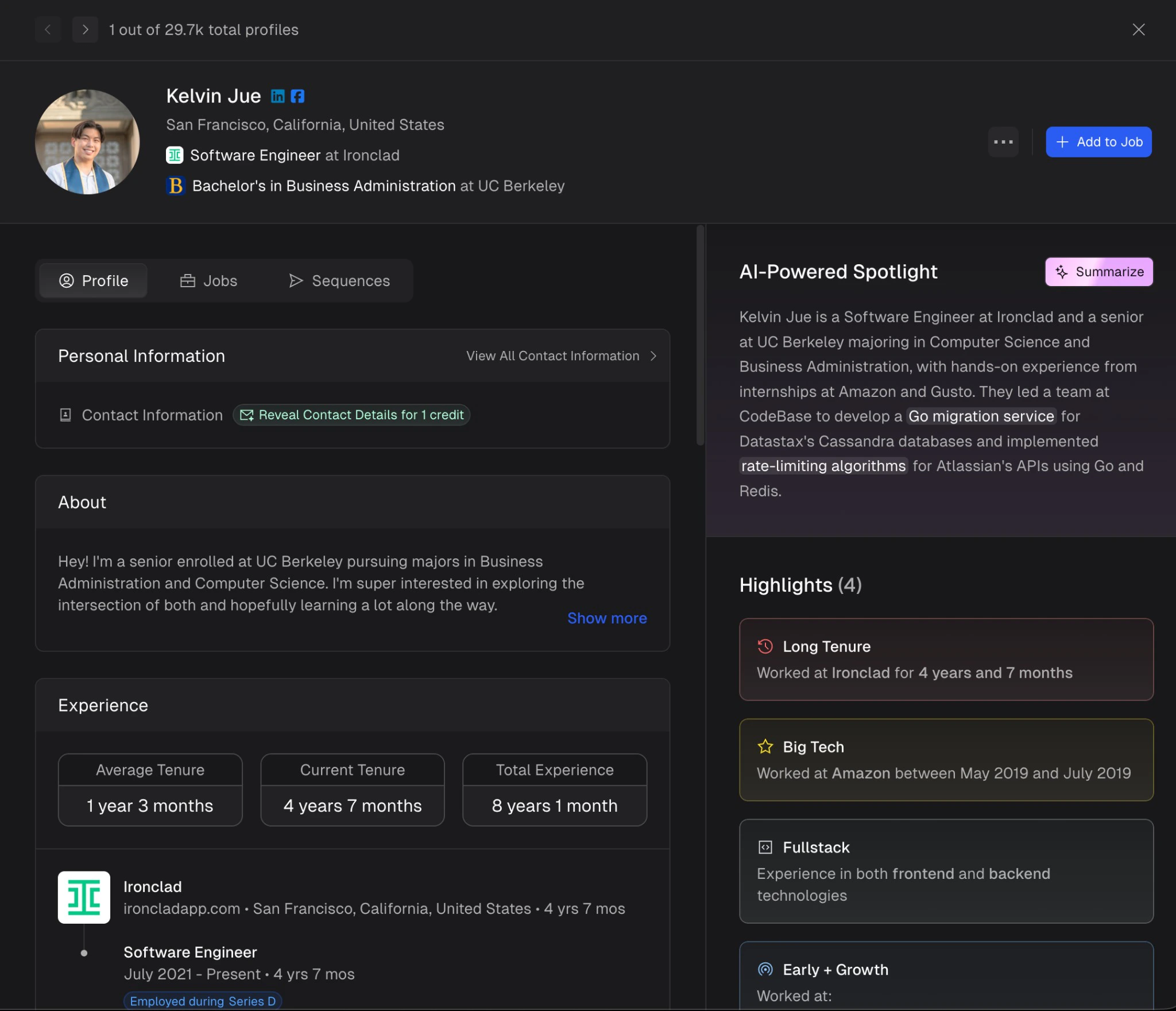
* **Personal information** - name, location, current title, company, education, and social links (LinkedIn, Facebook, GitHub, and more).
* **Contact data** - click **Reveal Contact Details** to unlock email, phone, and other contact information. For more on how credits and contact reveals work, see [Contact data](/sourcing/contact-data).
* **Experience** - full work history with company, title, dates, and tenure. Summary stats at the top show **Average Tenure**, **Current Tenure**, and **Total Experience** at a glance.
* **Education** - university, degree, field of study, and graduation dates.
* **Skills and certifications** - extracted from the candidate's profile and work history.
* **AI-Powered Spotlight** - a generated summary that highlights the candidate's most relevant experience, technologies, and accomplishments. Click **Summarize** to regenerate.
* **Highlights** - badge-style signals like Long Tenure, Big Tech, Fullstack, Early + Growth, and more. For the full list of all available highlights and what they mean, see [Profile highlights](/sourcing/profile-highlights).
### Technical profiles
For candidates with public developer profiles, Arbi renders **Technical Profile** cards directly in the profile view. If a candidate has a GitHub account, you will see their username, registration date, repository count, and a list of repositories with primary languages. StackOverflow profiles surface in the same way.
### What you will find in a profile
* **Personal information** - name, location, current title, company, education, and social links (LinkedIn, Facebook, GitHub, and more).
* **Contact data** - click **Reveal Contact Details** to unlock email, phone, and other contact information. For more on how credits and contact reveals work, see [Contact data](/sourcing/contact-data).
* **Experience** - full work history with company, title, dates, and tenure. Summary stats at the top show **Average Tenure**, **Current Tenure**, and **Total Experience** at a glance.
* **Education** - university, degree, field of study, and graduation dates.
* **Skills and certifications** - extracted from the candidate's profile and work history.
* **AI-Powered Spotlight** - a generated summary that highlights the candidate's most relevant experience, technologies, and accomplishments. Click **Summarize** to regenerate.
* **Highlights** - badge-style signals like Long Tenure, Big Tech, Fullstack, Early + Growth, and more. For the full list of all available highlights and what they mean, see [Profile highlights](/sourcing/profile-highlights).
### Technical profiles
For candidates with public developer profiles, Arbi renders **Technical Profile** cards directly in the profile view. If a candidate has a GitHub account, you will see their username, registration date, repository count, and a list of repositories with primary languages. StackOverflow profiles surface in the same way.
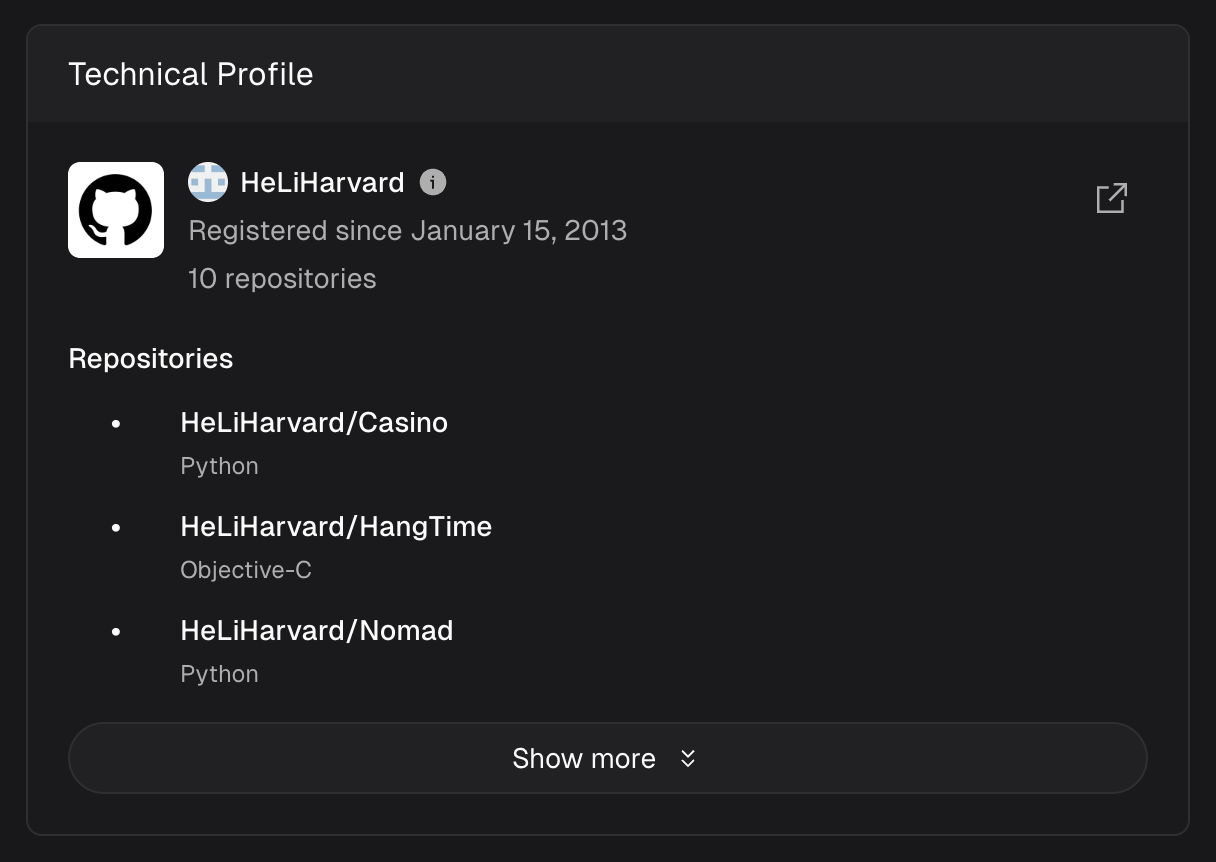 These cards give you a quick read on a candidate's technical depth without leaving Arbi.