

Job Requisitions page
Navigate to Jobs in the sidebar to see all job requisitions in your active project. If you have no jobs yet, you will see an empty state prompting you to create one. You can also connect your ATS from this page to sync jobs and candidates automatically. See ATS integrations for more.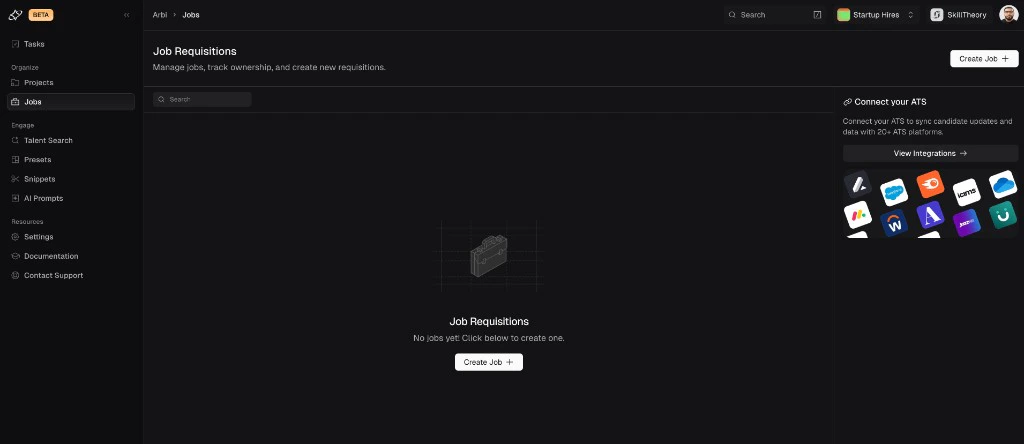
The Job Requisitions page in an empty state with a Create Job button and an ATS integration prompt.
Creating a job
Click Create Job to open the Job Setup wizard. The wizard walks you through four steps: Job Details, Stage Setup, Profile Import, and Complete.Step 1: Job Details
Fill in the basic information for your position:- Job Title - the title for this role (e.g. “Founding Software Engineer - Typescript”).
- Job Manager - the person in Arbi responsible for sourcing and outreach on this position. Select from members of your organization.
- Job Description - a rich text description of the role. The editor supports bold, italic, underline, lists, links, and tables.
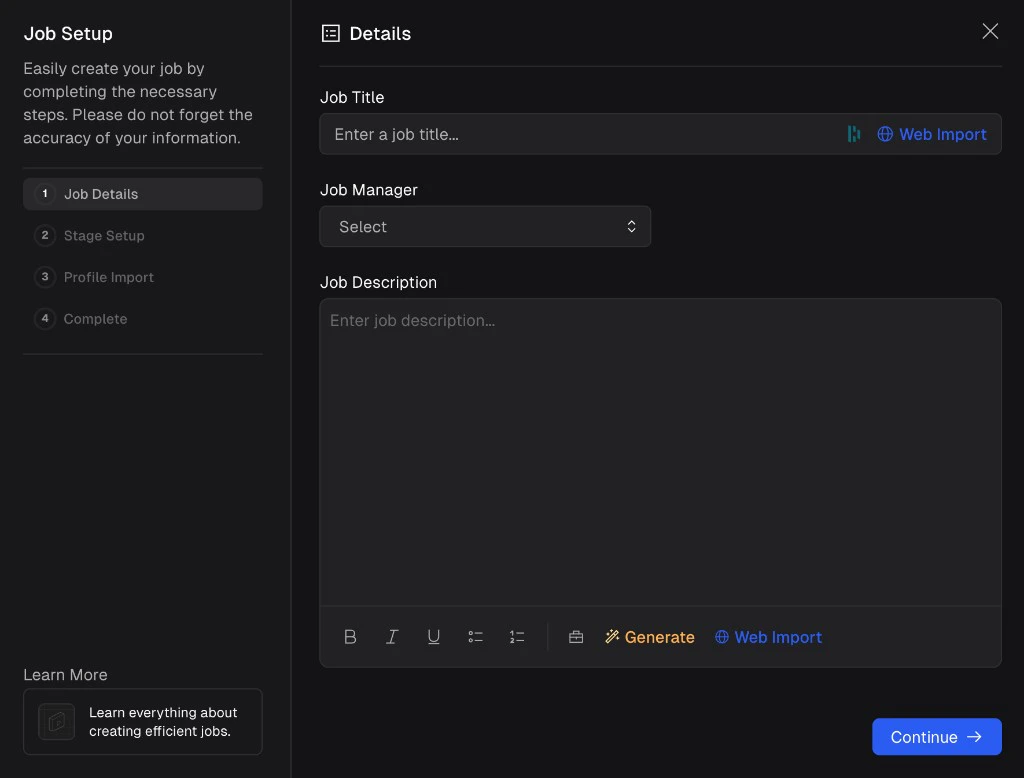
The Job Details step of the setup wizard with fields for title, manager, and description.
- Web Import - paste any publicly available job board URL into the field at the bottom and click Web Import. Arbi will pull in the job title and description automatically.
- Generate - click Generate at the bottom of the description editor to have Arbi write a job description based on plain-language requirements you provide.
- Copy from another job - click the suitcase icon at the bottom of the editor to copy a description from an existing job in your account.
- Manual entry - type or paste your description directly into the editor.
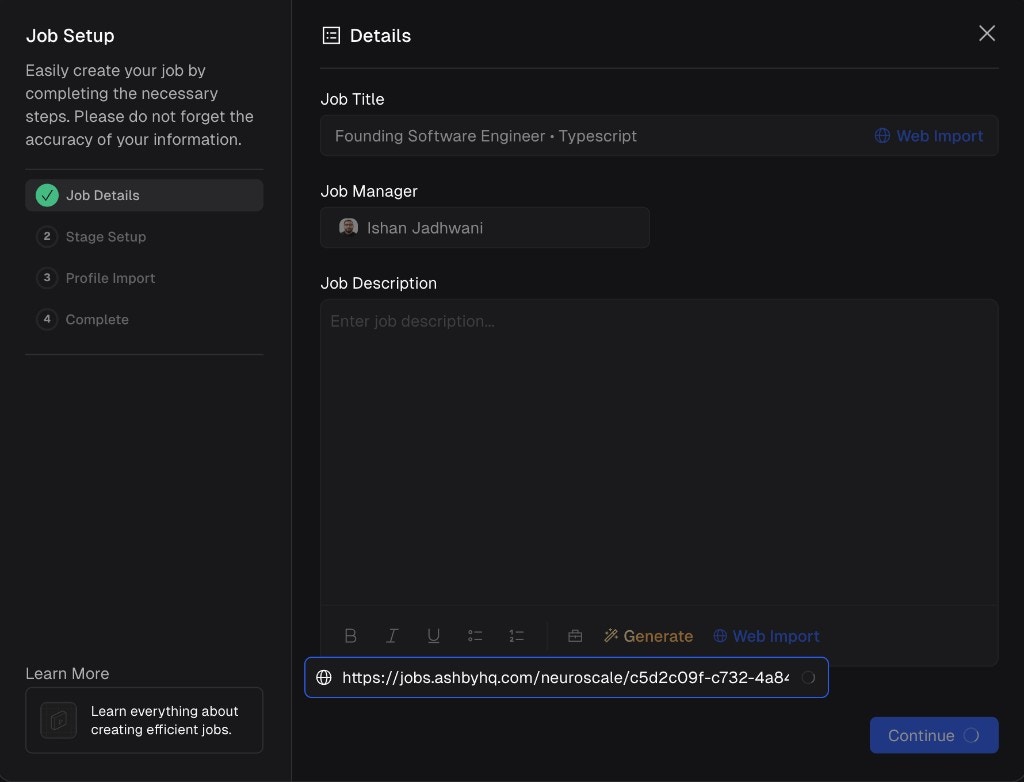
The Job Details step with a Web Import URL pasted to automatically import a job description.
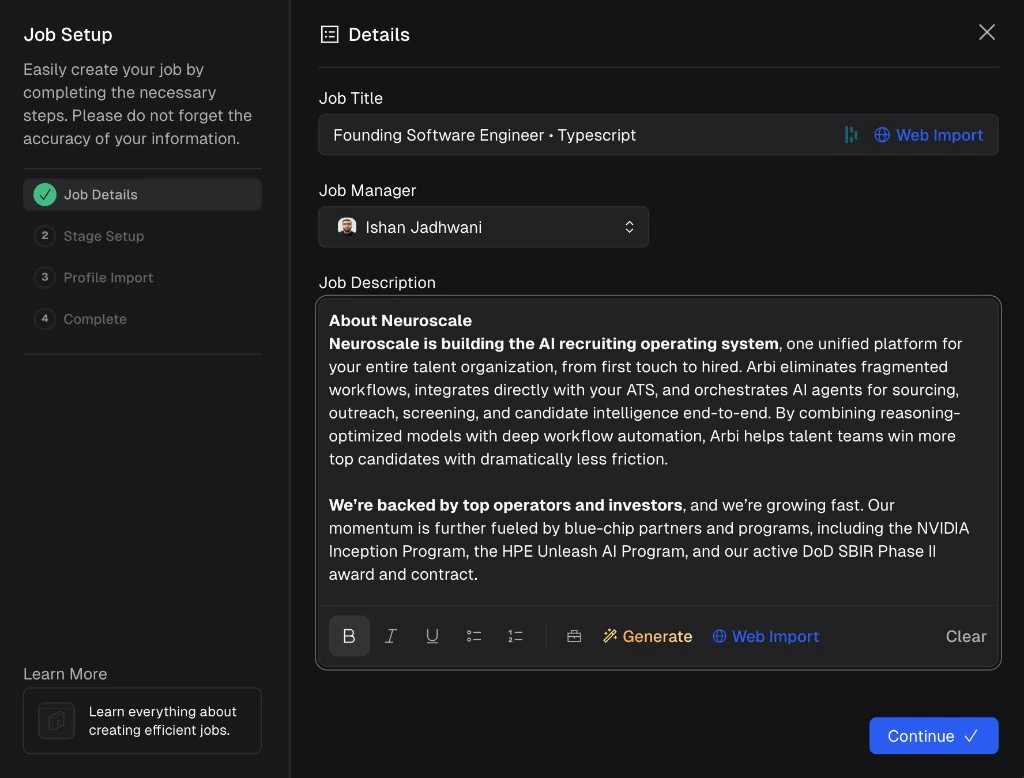
A fully populated Job Details form with the imported job title, manager, and description.
Step 2: Stage Setup
Stages define the pipeline that candidates move through within your job. By default, Arbi creates three stages:- Sourced - all talent profiles sourced from Talent Search land here. This stage is a system requirement and cannot be removed or modified.
- Inbox - candidates that are advanced from Sourced (e.g. they replied as interested to outreach or are moving forward). This stage is required for non-ATS jobs and cannot be removed.
- Archived - candidates that have been archived. You can restore them at any time. This stage is a system requirement and cannot be removed.
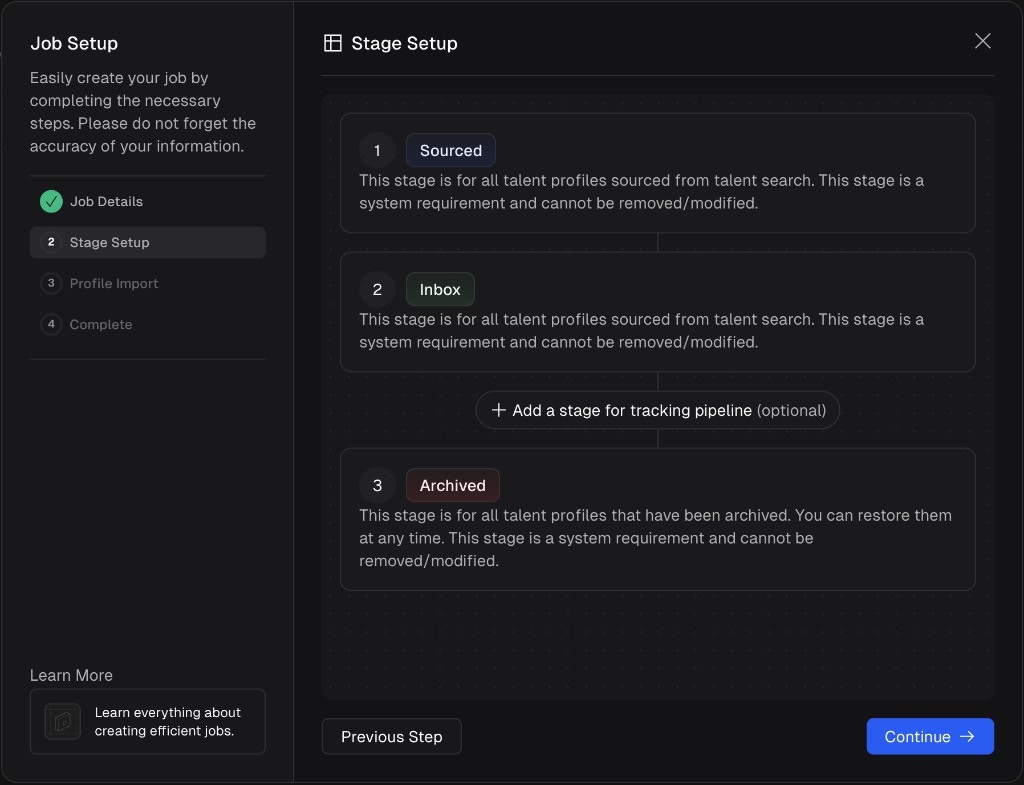
The Stage Setup step with the default Sourced, Inbox, and Archived stages.
- Stage Label - a name for the stage (e.g. “First Round Interview”, “Technical Screen”, “Offer”).
- Color - pick a color or use the default.
- Stage Description - describe what this stage represents.
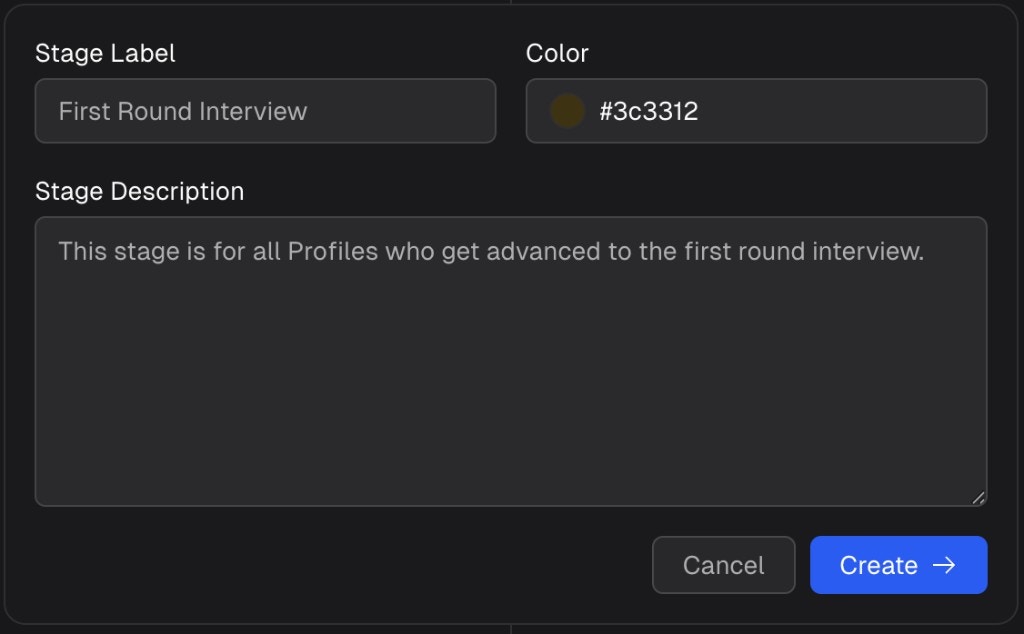
Creating a custom pipeline stage with a label, color, and description.
Step 3: Profile Import
This step lets you optionally import existing candidates into the job before it is created. If you have an ATS connected and this job is linked to a position in your ATS, you will see a preview of all candidates that will be automatically imported and which stages they will land in. If you are creating a job without an ATS, you can upload resumes to bring in existing candidates. Click Upload File to drag and drop or browse for PDF files (up to 10MB and 20 pages per file). Arbi will process each resume in the background, extracting experience, education, skills, and other fields to create a structured candidate profile.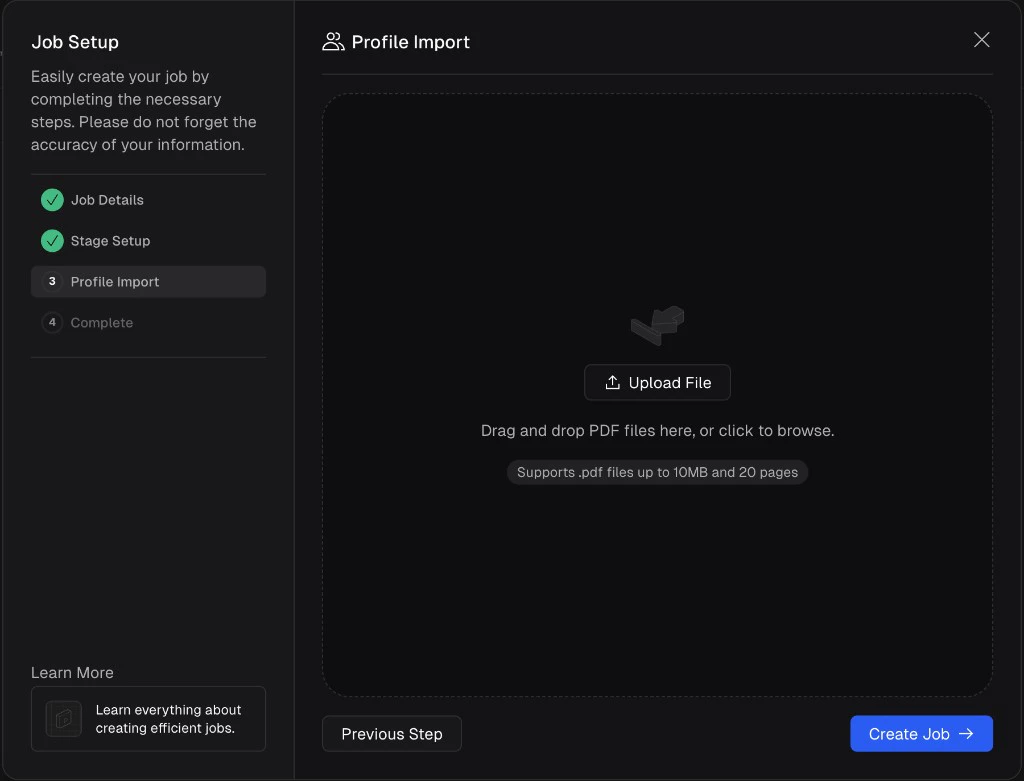
The Profile Import step with a drag-and-drop area for uploading PDF resumes.
Step 4: Complete
Once the job is created, you will see a confirmation screen with quick actions to get started:- Start Sourcing with Talent Search - go directly to Talent Search to find candidates for this role.
- Create or Clone Your First Outreach Sequence - set up a Sequence for this job.
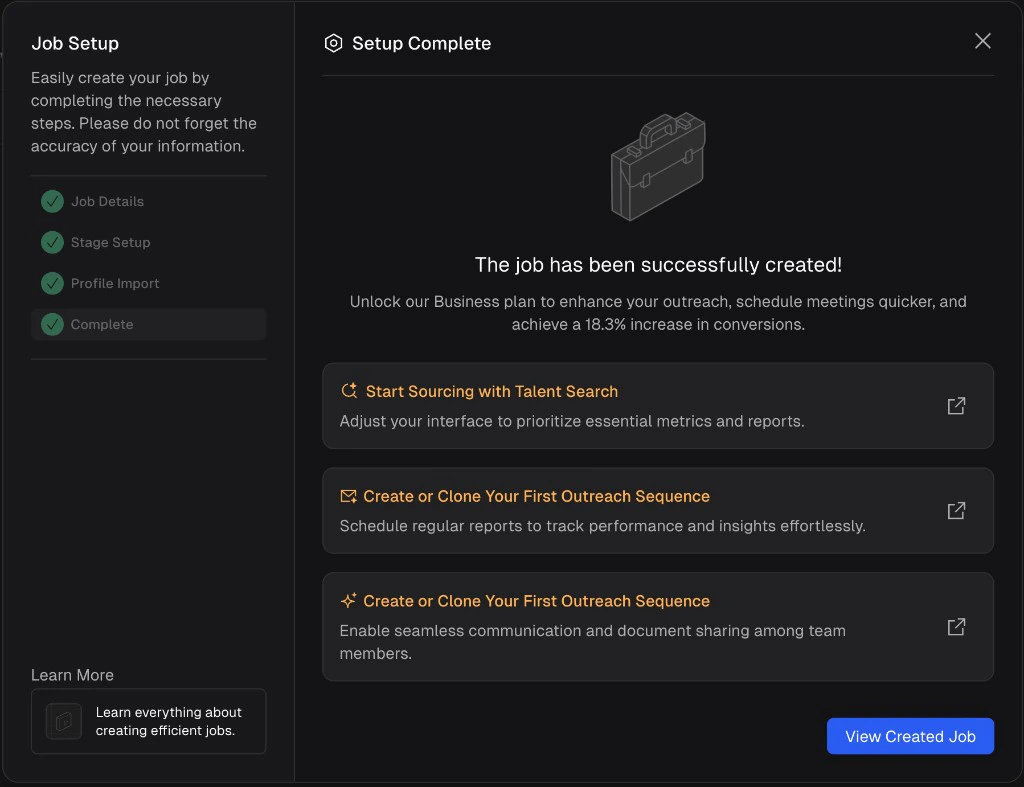
Setup Complete confirmation with quick action links to start sourcing and create sequences.
Working inside a job
Once you open a job, you will see the pipeline view with your stages displayed as tabs across the top (left to right: Sourced, Inbox, any custom stages, and Archived on the far right). Click All to see every profile in the job regardless of stage.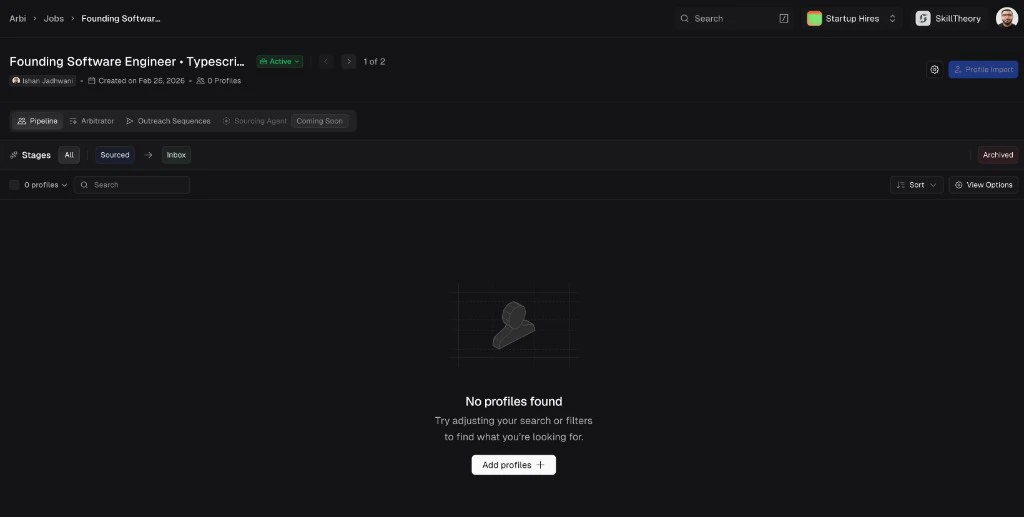
An empty job pipeline showing the stages tabs, profile count, and action buttons.
- Add profiles - click Profile Import in the top right or Add profiles in the empty state to import candidates (see importing profiles below).
- Run Arbitrator - use the Arbitrator tab to score and rank candidates.
- Create outreach sequences - use the Outreach Sequences tab to set up Sequences for this job.
- Configure sourcing agents - set up automated Sourcing agents for this job.
- Manage job settings - click the gear icon to modify stages, job details, and other settings.
Job settings
Click the gear icon at the top right of the job view to open Job Settings. From here you can modify your pipeline stages at any time, including adding new custom stages, reordering them, or editing their labels and descriptions.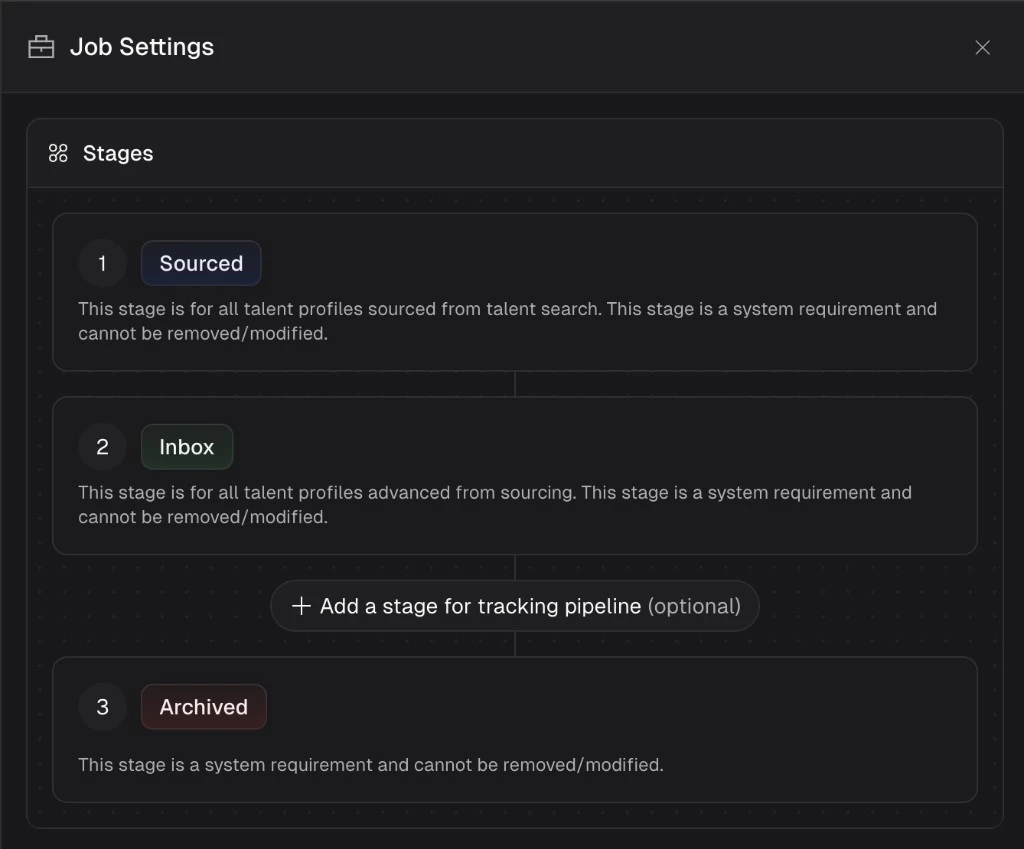
Job Settings showing the pipeline stages with options to add and configure tracking stages.
Importing profiles
You can import candidates into a job at any time, not just during initial setup. Click the Profile Import button in the top right of the job view. Arbi supports three import methods: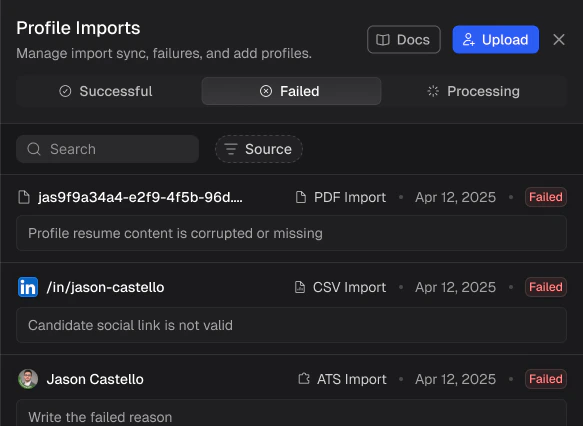
The import method menu with options for search, PDF, and CSV imports.
Import from search
Search for candidates by name, company, location, or paste a LinkedIn or GitHub profile URL. Select the stage you want imported profiles to land in and click Import.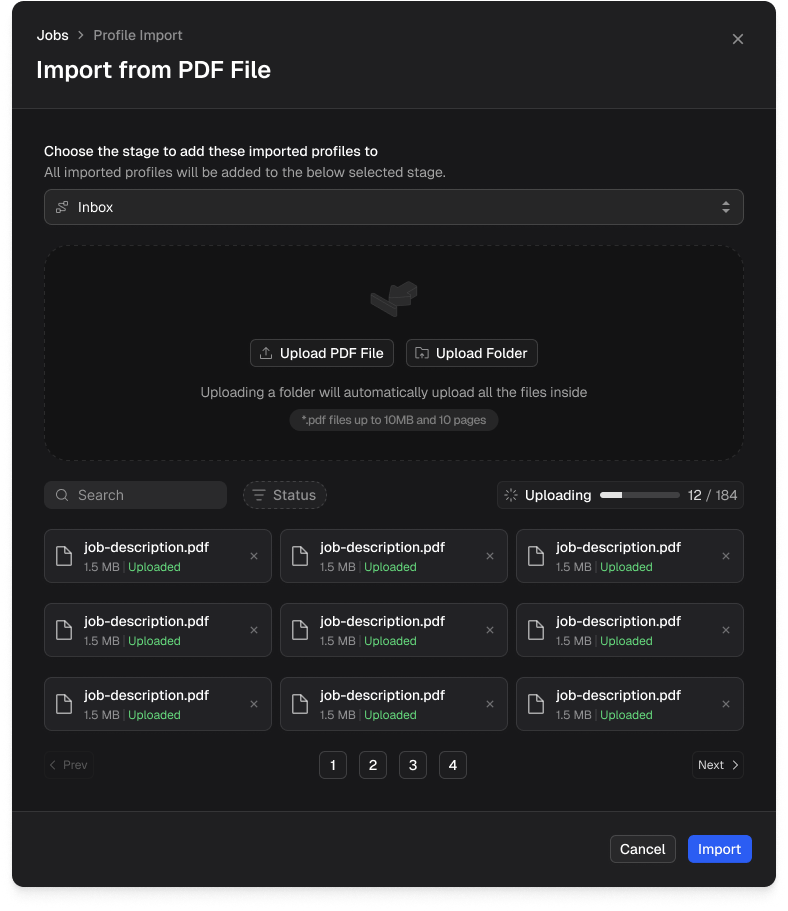
Import From Search dialog with a stage selector and a search field for finding candidates by name, URL, or query.
Import by CSV
Upload a CSV file containing LinkedIn or GitHub profile links. The CSV should have one column with profile URLs and optional columns for contact information. Files up to 5MB are supported. You can download a sample CSV for reference. Select a target stage and click Import.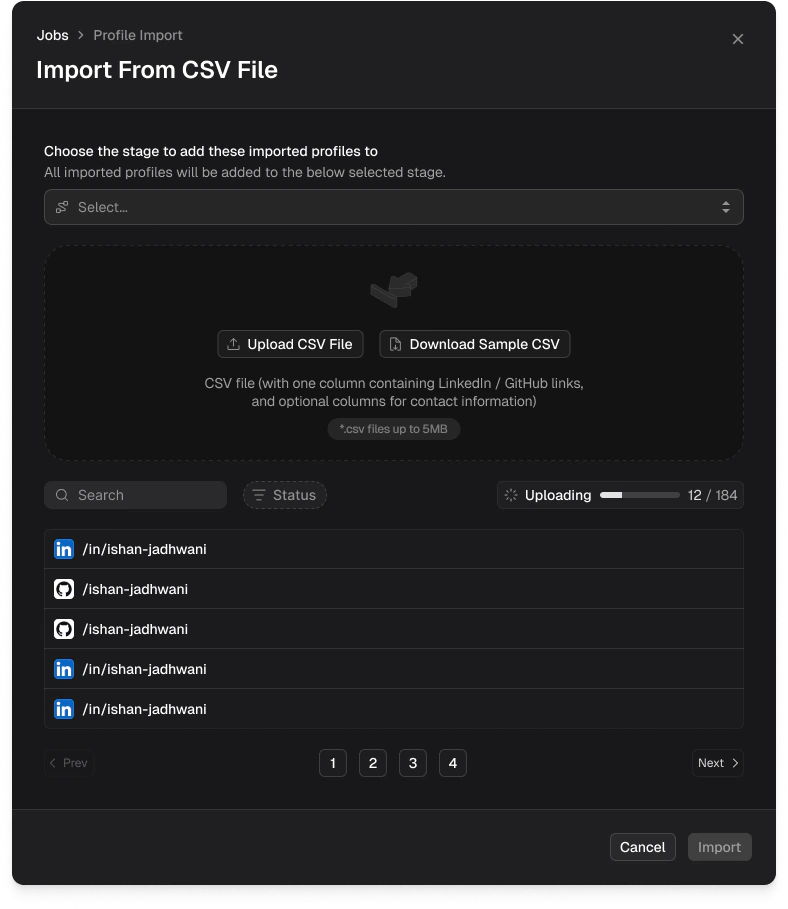
Import From CSV File dialog with a CSV upload area, a progress bar, and a list of profiles being processed.
Import by PDF
Upload individual resume PDFs or an entire folder. Arbi extracts experience, education, skills, and other fields from each resume to build structured candidate profiles. PDF files up to 10MB and 10 pages are supported. Select a target stage and click Import.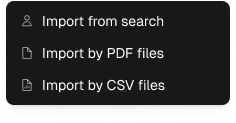
Import from PDF File dialog with PDF upload area, folder upload option, and a grid of uploaded resumes.
Monitoring imports
After importing, you can track the status of each profile in the Profile Imports panel. Click the Profile Import button to open it. Imports are categorized into three tabs:- Successful - profiles that were processed and added to your job.
- Failed - profiles that could not be imported. Each entry shows the reason for failure (e.g. “Profile resume content is corrupted or missing”, “Candidate social link is not valid”).
- Processing - profiles that are still being enriched.
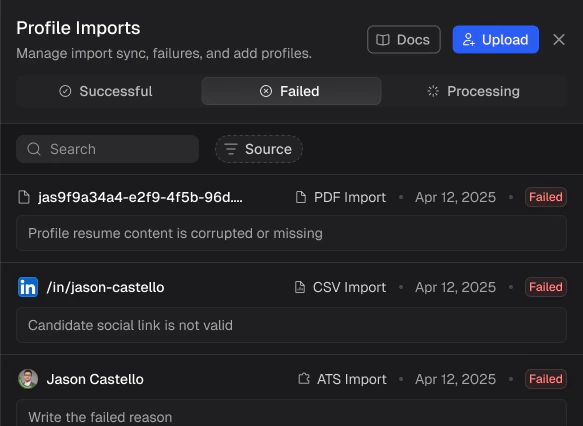
The Profile Imports panel showing the Failed tab with error reasons for each import.
Job status
Every job has a status that controls whether it is actively running. Click the status badge next to the job title to change it:- Active - the job is live. Sequences are running, ATS syncing is active, and the job counts toward your active job quota.
- Paused - all sequences and ATS syncing are paused. The job does not count toward your active quota. Use this when you are temporarily not hiring for this role but may resume later.
- Closed - the job is permanently closed. All activity stops. The job does not count toward your active quota. Use this when the position has been filled or is no longer needed.
Closing a job
When you close a job, Arbi will ask you to provide a reason and optionally select the profiles that you hired. This helps Arbi carry out related cleanup tasks.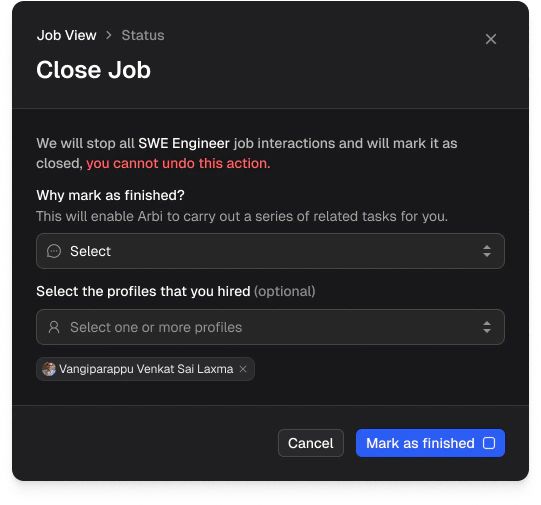
The Close Job dialog with a reason selector and an option to tag the profiles that were hired.
Frequently asked questions
How many active jobs can I have?
How many active jobs can I have?
Do imported profiles show up in Talent Search?
Do imported profiles show up in Talent Search?
Can I move a candidate between stages?
Can I move a candidate between stages?
What happens to my ATS data when I create stages?
What happens to my ATS data when I create stages?
Can I import candidates after the job is created?
Can I import candidates after the job is created?