

How to search
Method 1: Arbi agent (smart searches)
The fastest way to start a search is to let the Arbi agent do it for you. From the Talent Search home screen, pick a Smart Search card or type a natural-language prompt into the search bar. For example, try “Find me software engineers skilled in Typescript & Node.js working at a Series A company.” Arbi parses your request, applies the right filters automatically, and returns a ranked result set. The agent also understands recruiter shorthand. Say “DMV area” and it knows you mean D.C., Maryland, and Virginia. Say “NorCal” and it scopes to Northern California. No need to map those yourself.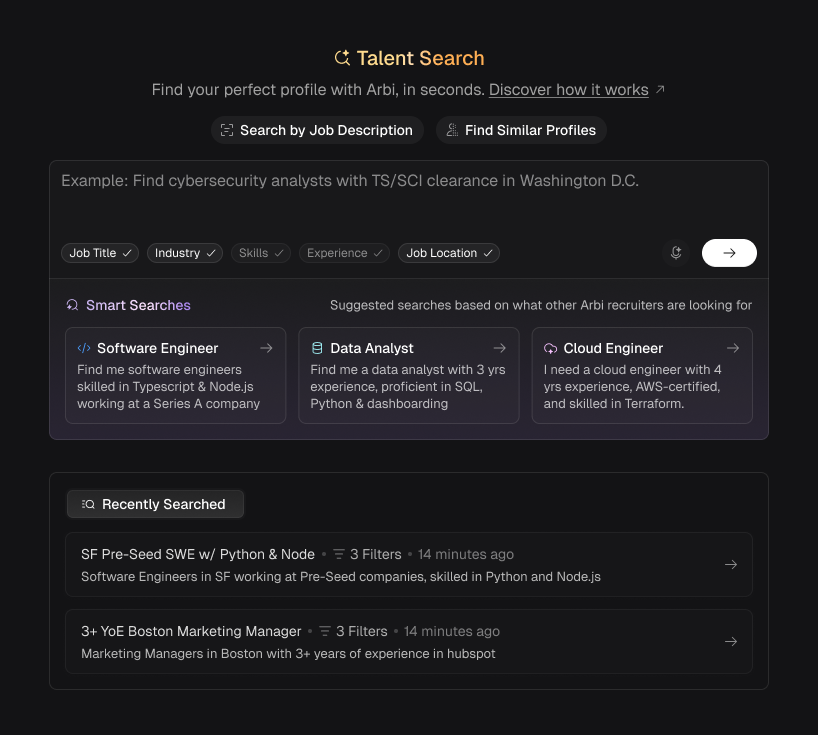
Smart Searches on the Talent Search home screen. Click a card or type your own prompt to kick off an agent-powered search.
Method 2: Manual filters
Open the Filters panel on the left side of the search results view to build a search entirely by hand. Filters are grouped into categories: General (experience range, contact info, exclusions), Skills or Keywords, Locations (current and past), Job (titles, roles, tenure), Company (funding stage, revenue, investors), Education (university, graduation date, majors), LinkedIn (connection scope), Languages, and more. Each filter supports search-as-you-type, presets you can save and reuse, and toggles like Current + Past for location or job history. For a full breakdown of every filter and what it does, see Talent filters.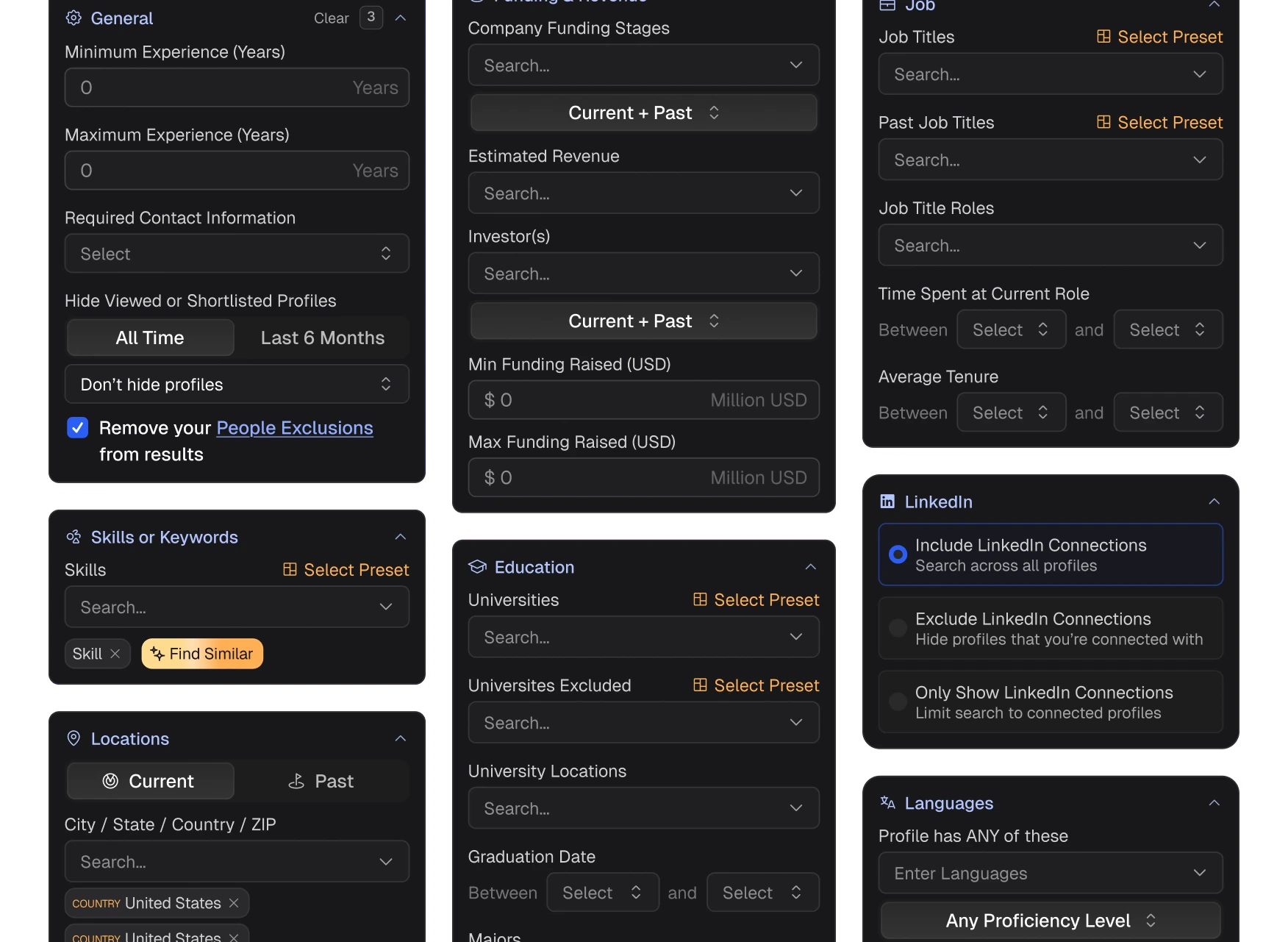
The full filter panel. General, Skills, Locations, Job, Company, Education, LinkedIn, Languages, and more.
Method 3: Hybrid (agent + filters)
The most powerful approach combines both. Start with a natural-language prompt or Smart Search and let the Arbi agent build your initial search, then open the Filters panel to fine-tune. The Arbi Assistant (right-side panel) stays active while you work. Use it to:- Add recommended titles - ask “What other titles should I include?” and the agent suggests related roles you might be missing.
- Expand search scope - tell it to widen geography, loosen experience ranges, or include adjacent industries.
- Get skill suggestions - say “What skills are similar to Terraform?” and it recommends related technologies.
- Translate recruiter slang - type “candidates from the DMV area” or “NorCal startups” and the agent resolves those to the right locations and company filters.
- Refine iteratively - review the result count, tell the agent what to change (“too many results, add Python as a required skill”), and watch the filters update live.
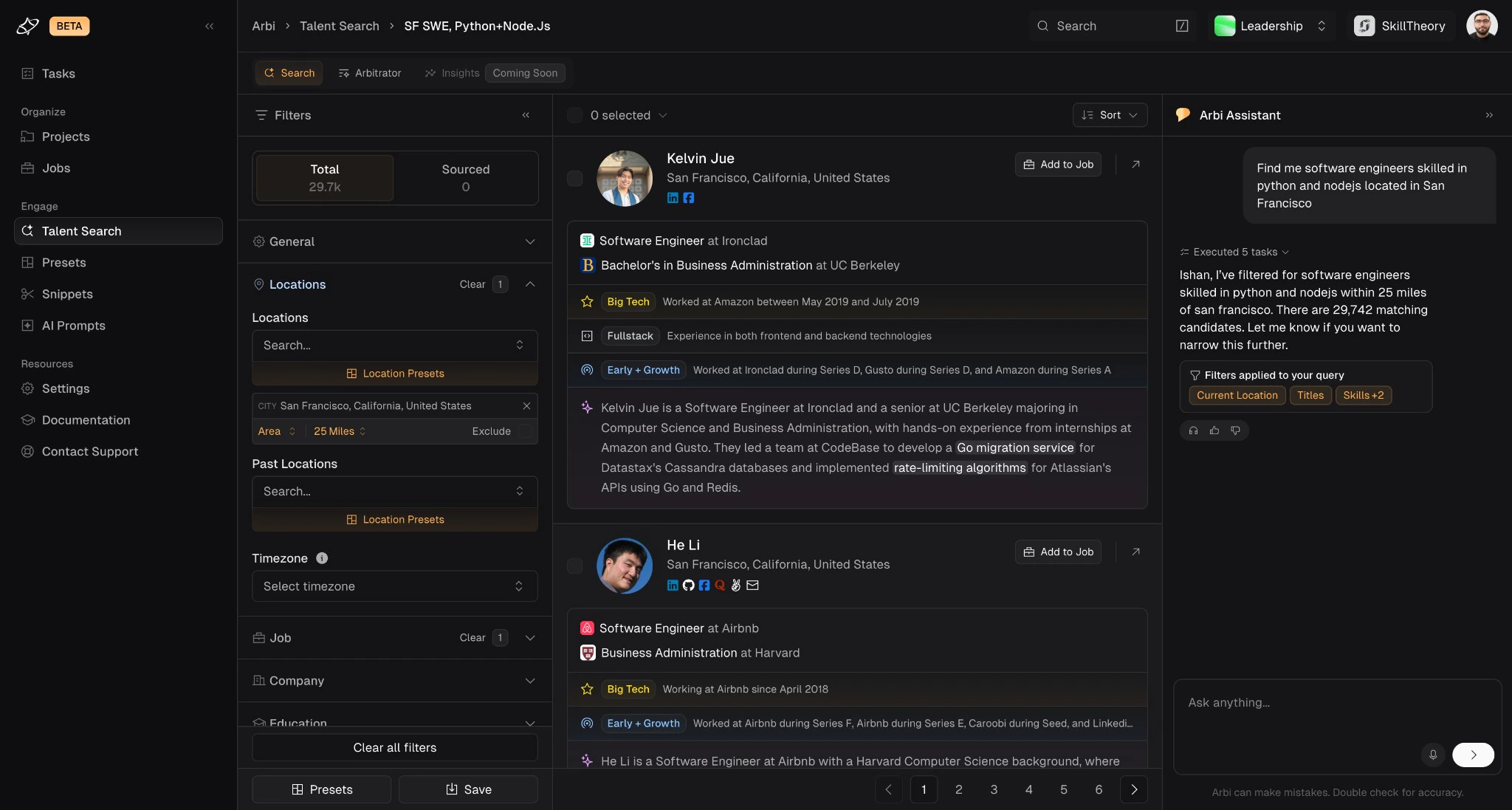
Hybrid search in action. The Arbi Assistant interprets your prompt, applies filters, and shows matching candidates alongside a chat panel for iterative refinement.
How to review profiles
Once your search returns results, each candidate in the list shows a summary card with their name, location, current role, education, and key tags like Big Tech, Early + Growth, or Fullstack. You will also see an AI-Powered Spotlight, a short AI-generated summary of the candidate’s background and standout experience, along with Highlights that call out signals like long tenure, notable employers, or technical depth. Click the arrow on any candidate card to open their full profile.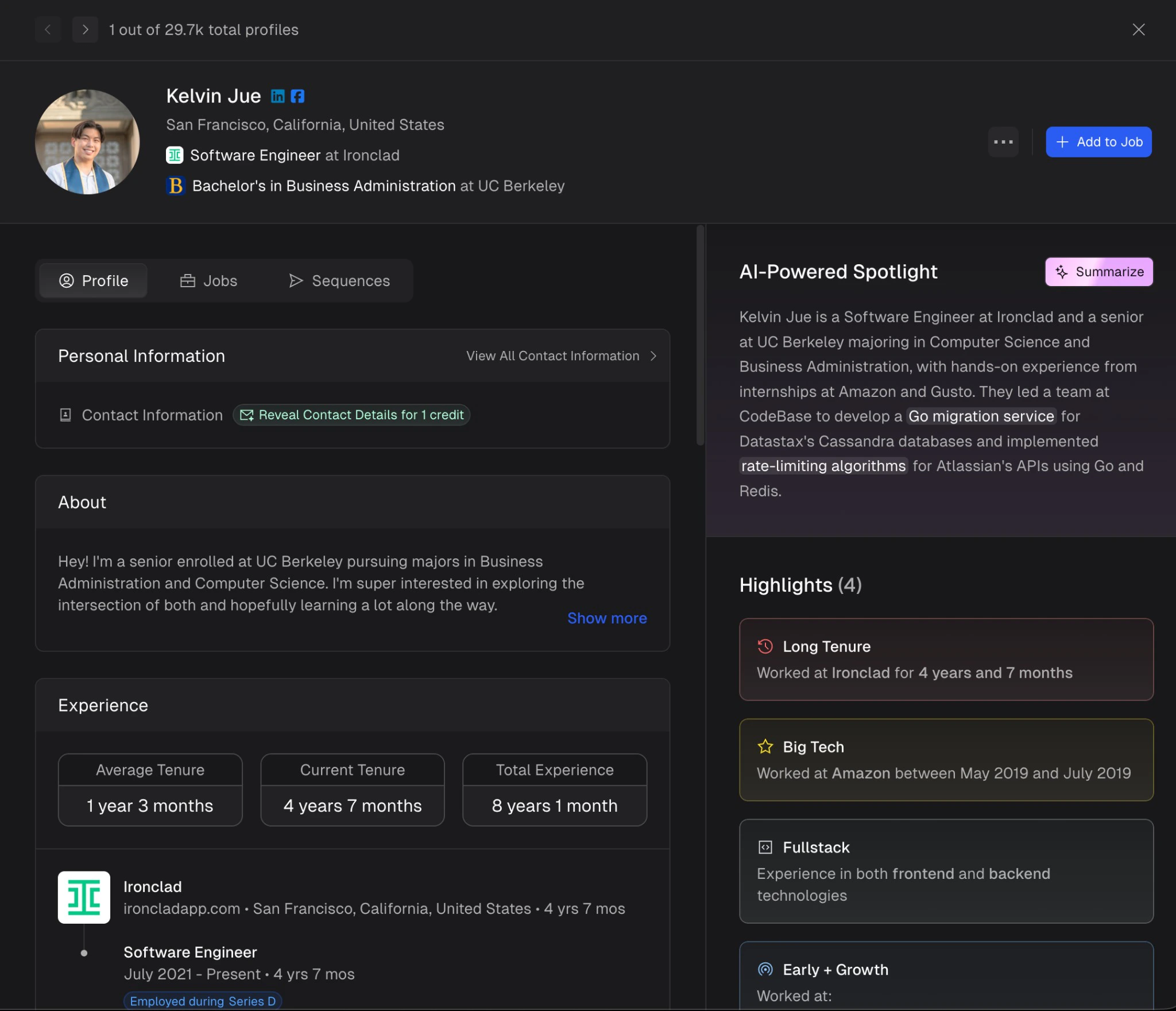
A candidate profile with AI-Powered Spotlight and Highlights on the right, personal information, experience, and education on the left.
What you will find in a profile
- Personal information - name, location, current title, company, education, and social links (LinkedIn, Facebook, GitHub, and more).
- Contact data - click Reveal Contact Details to unlock email, phone, and other contact information. For more on how credits and contact reveals work, see Contact data.
- Experience - full work history with company, title, dates, and tenure. Summary stats at the top show Average Tenure, Current Tenure, and Total Experience at a glance.
- Education - university, degree, field of study, and graduation dates.
- Skills and certifications - extracted from the candidate’s profile and work history.
- AI-Powered Spotlight - a generated summary that highlights the candidate’s most relevant experience, technologies, and accomplishments. Click Summarize to regenerate.
- Highlights - badge-style signals like Long Tenure, Big Tech, Fullstack, Early + Growth, and more. For the full list of all available highlights and what they mean, see Profile highlights.
Technical profiles
For candidates with public developer profiles, Arbi renders Technical Profile cards directly in the profile view. If a candidate has a GitHub account, you will see their username, registration date, repository count, and a list of repositories with primary languages. StackOverflow profiles surface in the same way.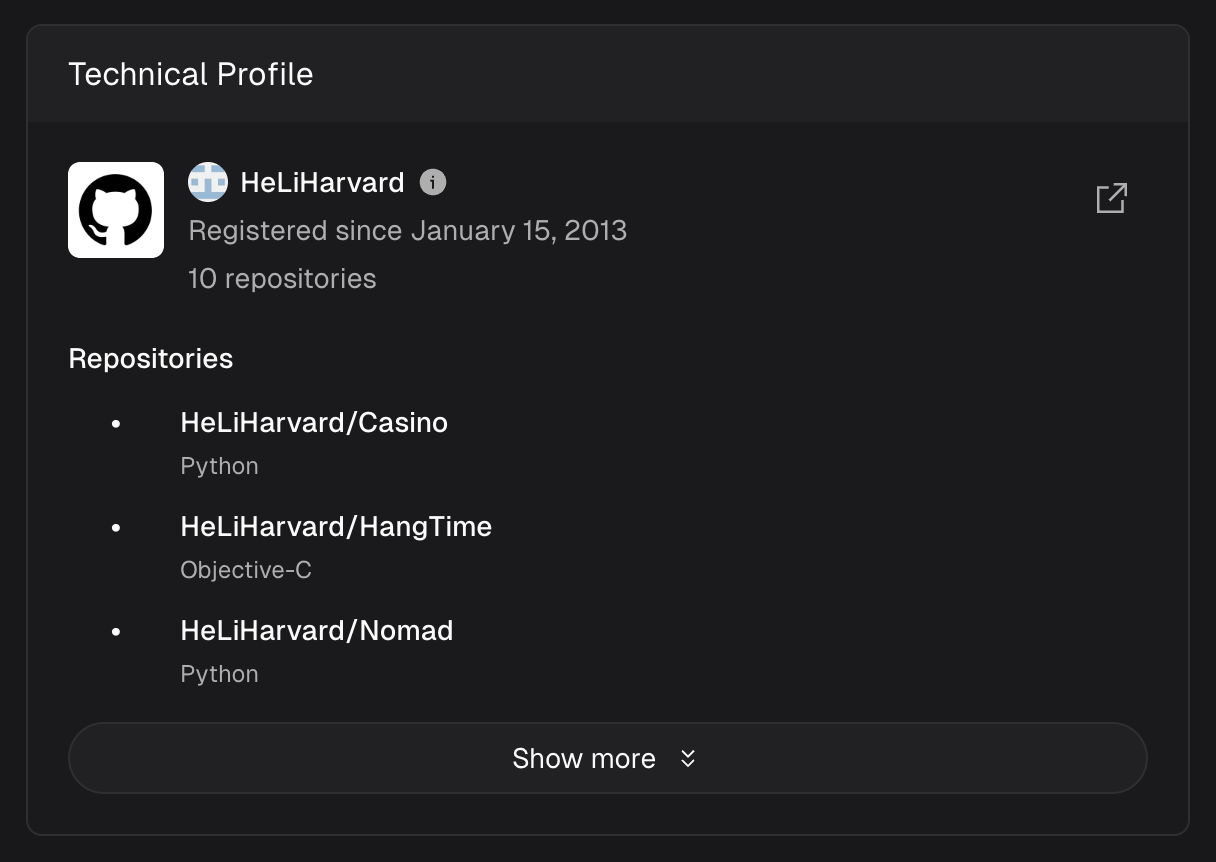
Technical Profile card with GitHub repositories, languages, and account details rendered directly in the candidate profile.