

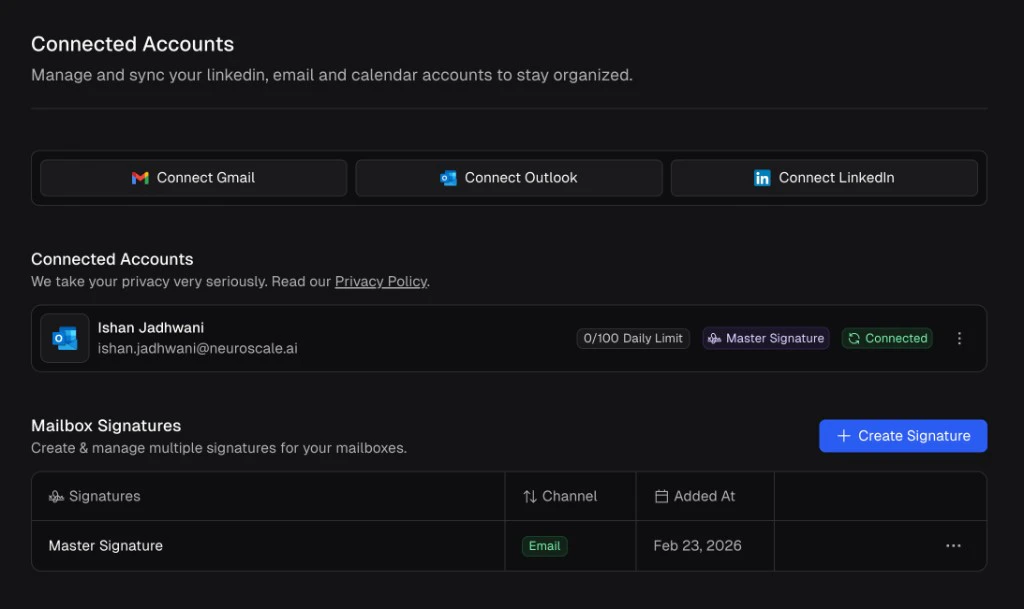
The Connected Accounts page showing linked email and LinkedIn accounts along with mailbox signatures.
Connecting an email account
Go to Settings > Connected Accounts and click Connect Gmail or Connect Outlook from the top bar.Configure your account
- Set as Default - check this if you want this to be your default sending account.
- Account Name - set the sender name that will appear in email headers when Arbi sends on your behalf.
- Select Signature - if you have already created a signature, you can assign it now. If not, you can always assign one later.
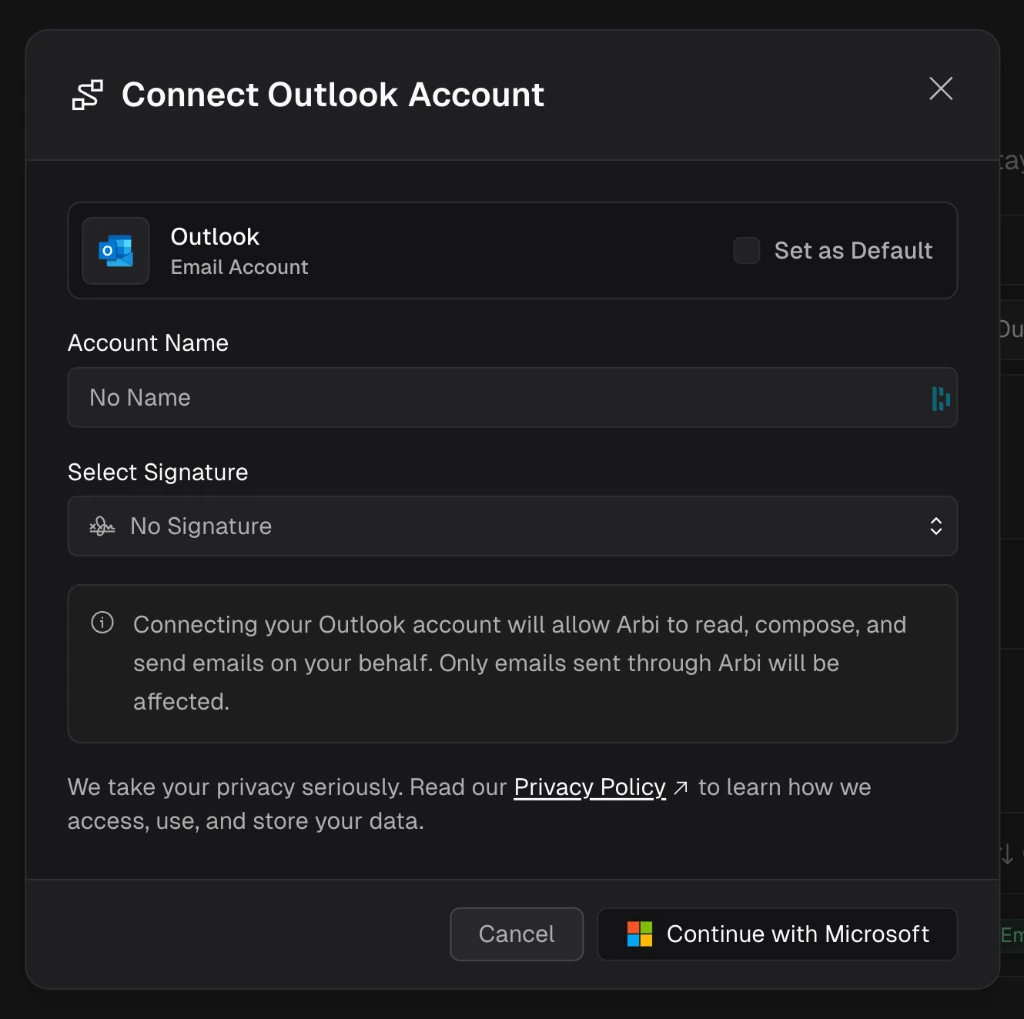
The Connect Outlook Account dialog with options for default account, sender name, and signature selection.
Sign in with your email provider
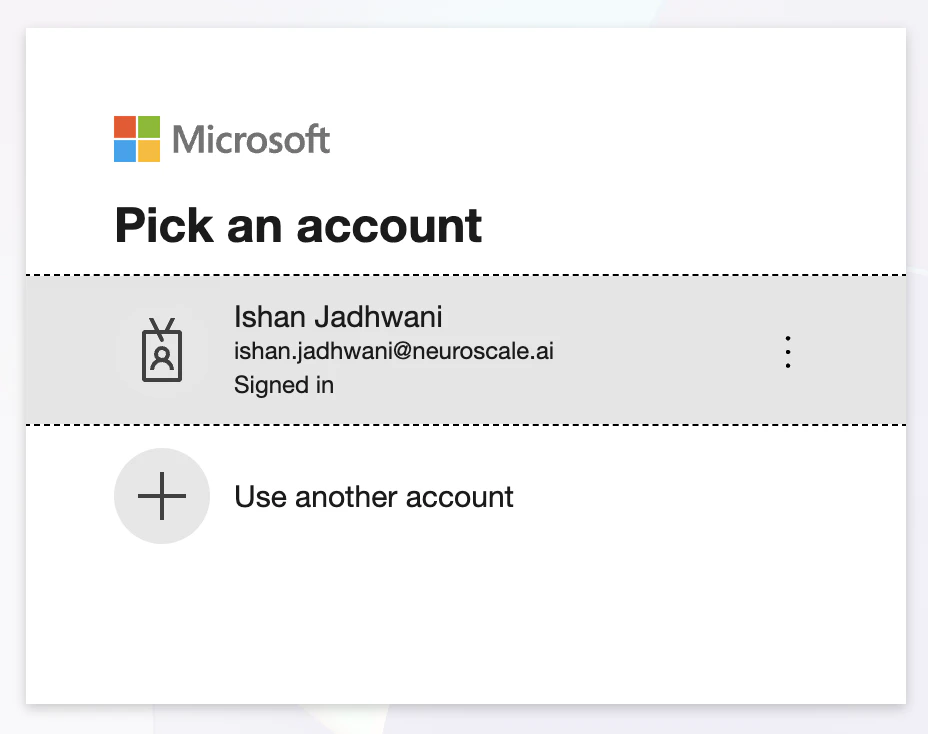
Microsoft account picker during the OAuth sign-in flow.
Account connected

A connected email account showing the daily sending limit, assigned signature, and connection status.
Daily sending limits
Each connected email account has a daily sending limit. The default is 100 emails per day, but you can increase this up to 500 from the account settings. This is not a hard cap. You can override it when enrolling candidates into sequences, but 500 is the maximum supported on a per-account level.Managing a connected account
Click the three-dot menu to the right of any connected account to access management options:- Edit Connection - update the sender name, default status, or other account settings.
- Assign Signature - attach a signature to this account (see below).
- Sync - manually trigger a sync with your email provider.
- Disconnect - unlink the account from Arbi.
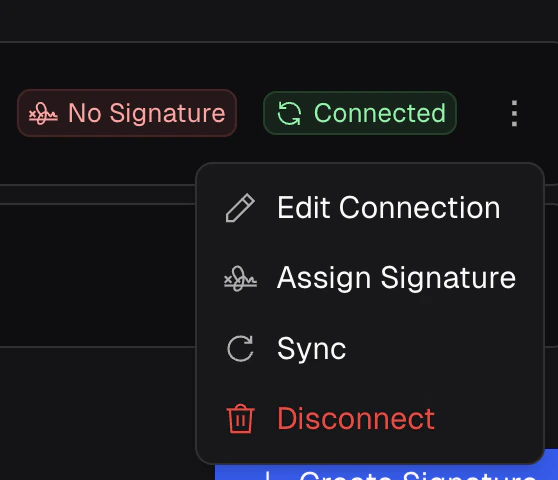
The account menu with options to edit, assign a signature, sync, or disconnect.
Signatures
You can create email signatures that get appended to outgoing messages sent through Arbi. Signatures can be created at any time, before or after you connect an account.Creating a signature
Click + Create Signature from the Connected Accounts page. Fill in:- Signature Title - a name for internal reference (e.g. “Master Signature”).
- Signature Channel - select Email for email accounts or Social for LinkedIn.
- Signature Description - an optional note (e.g. “For all inboxes”).
- Signature Content - write or paste your signature. The editor supports bold, italic, underline, lists, links, images, and tables.
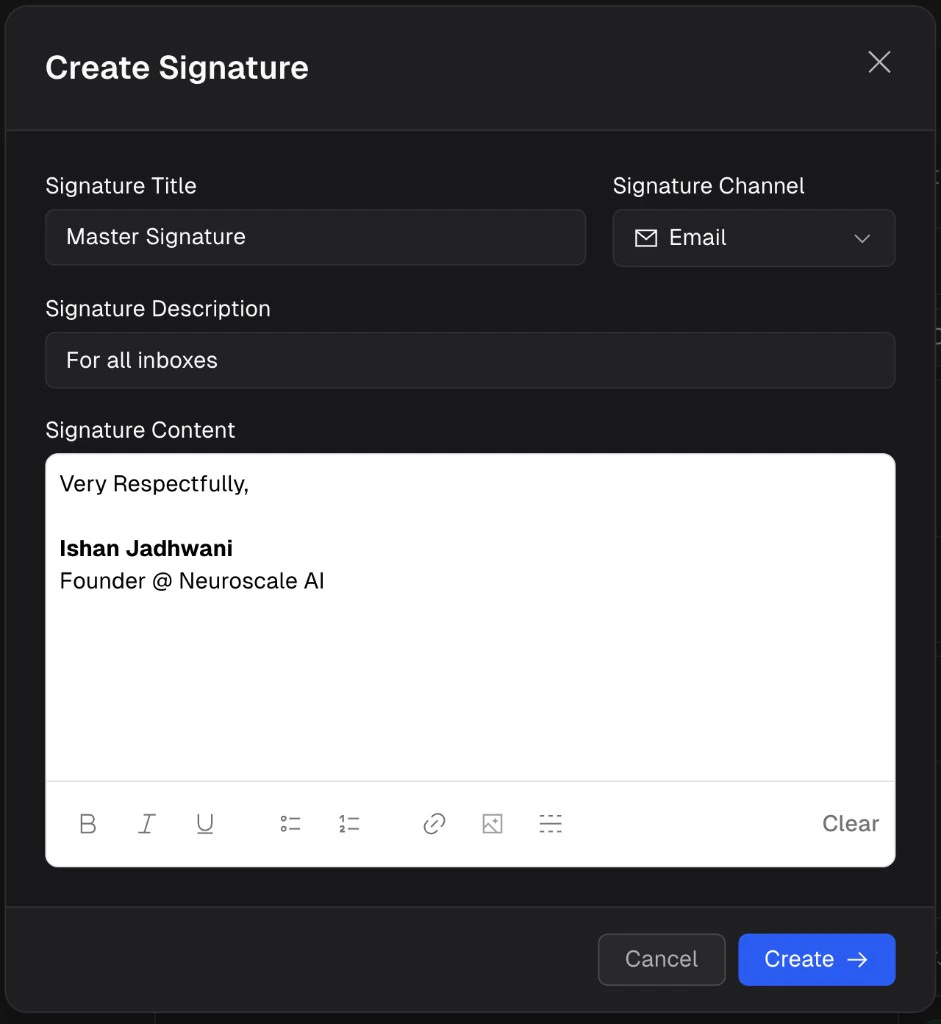
The Create Signature dialog with a rich text editor for signature content.
Assigning a signature to an account
Once a signature is created, assign it to any connected account. Click the three-dot menu on the account, select Assign Signature, choose the signature from the dropdown, and click Assign.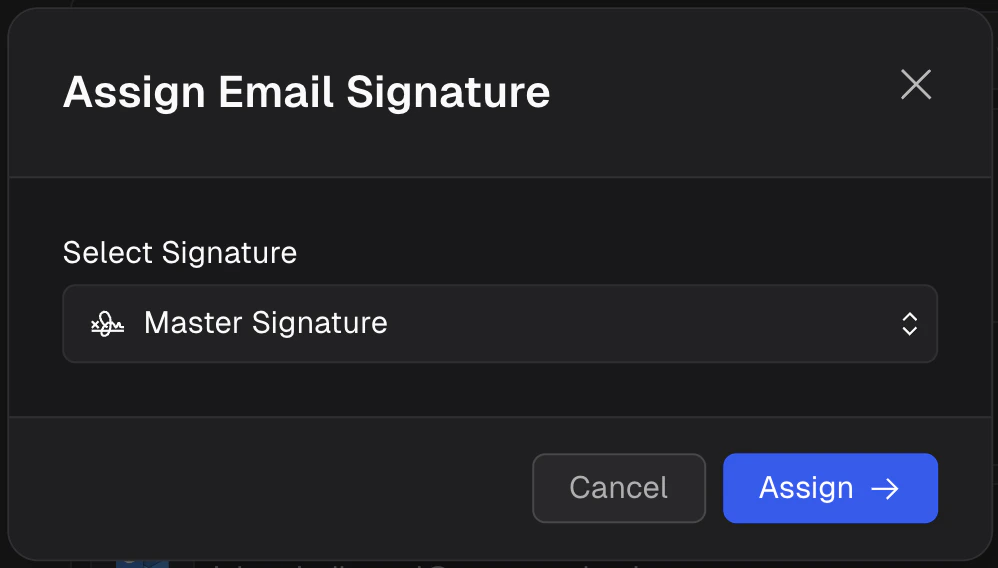
The Assign Email Signature dialog with a dropdown to select a saved signature.
Connecting your LinkedIn account
Click Connect LinkedIn from the Connected Accounts page.Enter your LinkedIn credentials
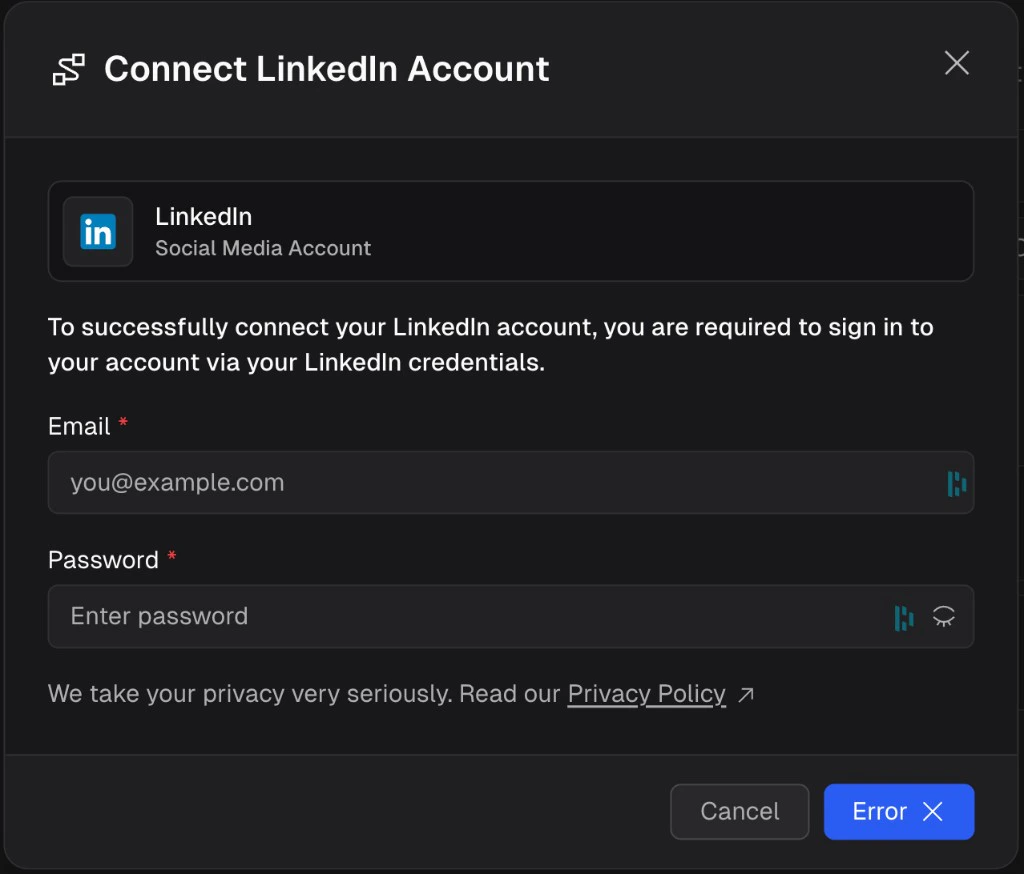
The Connect LinkedIn Account dialog requiring your LinkedIn email and password.
Complete two-factor authentication (if enabled)
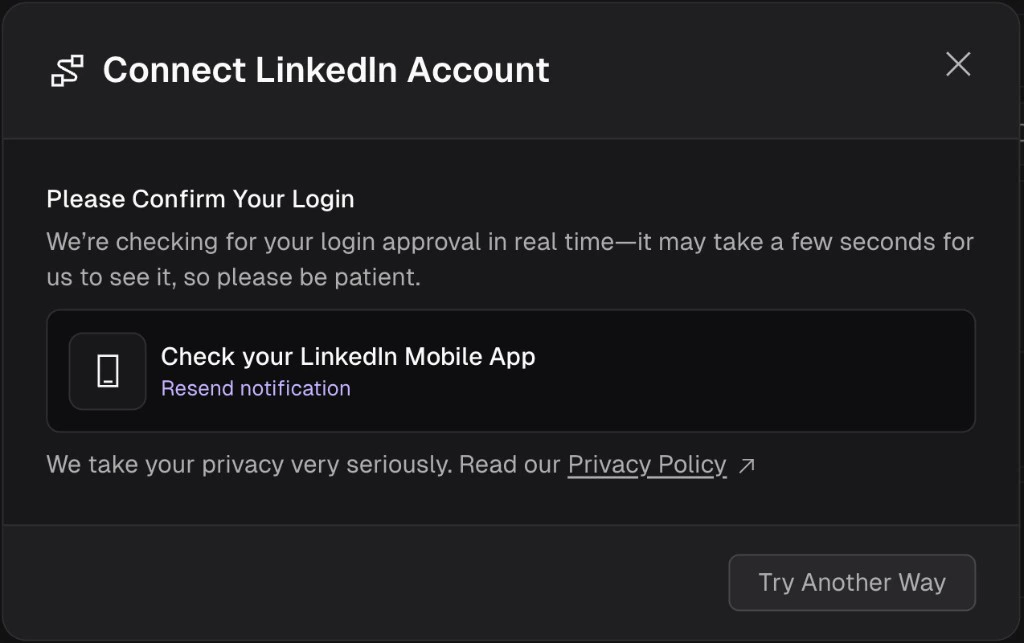
Arbi waiting for you to approve the LinkedIn sign-in on your mobile app.
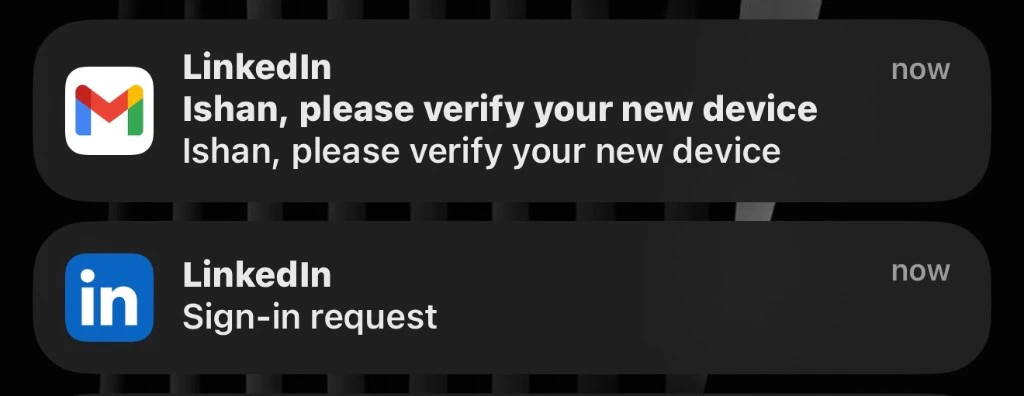
LinkedIn mobile notifications for device verification and sign-in approval.
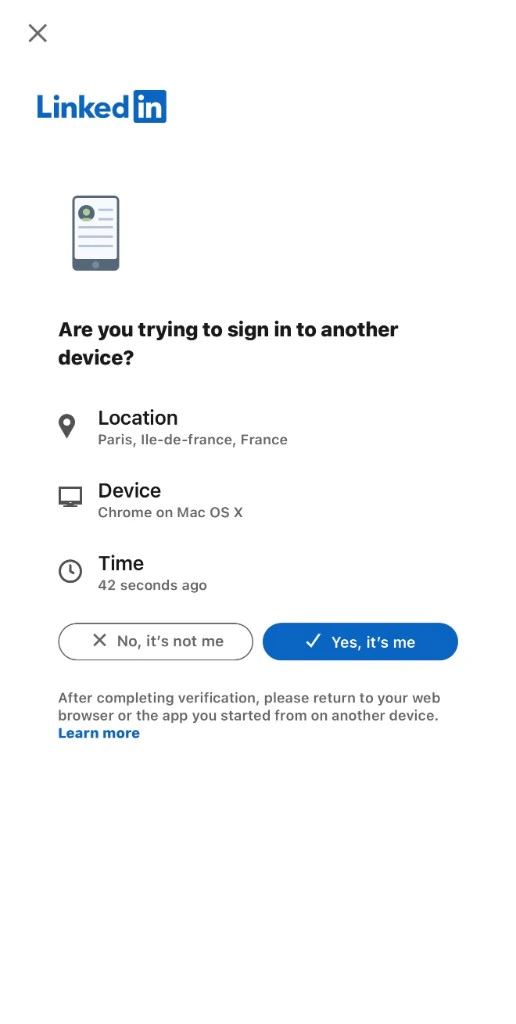
The LinkedIn verification page on mobile where you confirm the sign-in attempt.
Wait for connection sync

A LinkedIn account in the Connecting state while Arbi syncs your connections.
How LinkedIn automation works in Arbi
Unlike email, LinkedIn actions are not fully automated. Arbi prepares LinkedIn connection requests, messages, and profile views for you, but they are queued in your Tasks for human approval before being sent. Tasks can be created manually or generated automatically through a Sequence. This means every LinkedIn touchpoint goes through you before it reaches the candidate.Disconnecting LinkedIn
You can disconnect your LinkedIn account at any time from the three-dot menu. Disconnecting will:- Unsync your connections - you will no longer see connection status indicators across Arbi or be able to filter by LinkedIn connections in Talent Search.
- Remove Unified Inbox access - you will lose the ability to send and receive LinkedIn messages within Arbi’s Unified Inbox.
Frequently asked questions
How many accounts can I connect?
How many accounts can I connect?
Can I create a signature before connecting an account?
Can I create a signature before connecting an account?
What happens if my LinkedIn 2FA fails?
What happens if my LinkedIn 2FA fails?
Why is my LinkedIn account stuck on Connecting?
Why is my LinkedIn account stuck on Connecting?
Will disconnecting LinkedIn delete my data?
Will disconnecting LinkedIn delete my data?